
Smart Pricing
How Smart Pricing sets your nightly prices, what you choose, when it writes prices, and what stays in your hands.
- Concept
- Rentals Rates Pricing
- Web
- iOS
- Android
- All-in-One
Updated October 29, 2026
How it works
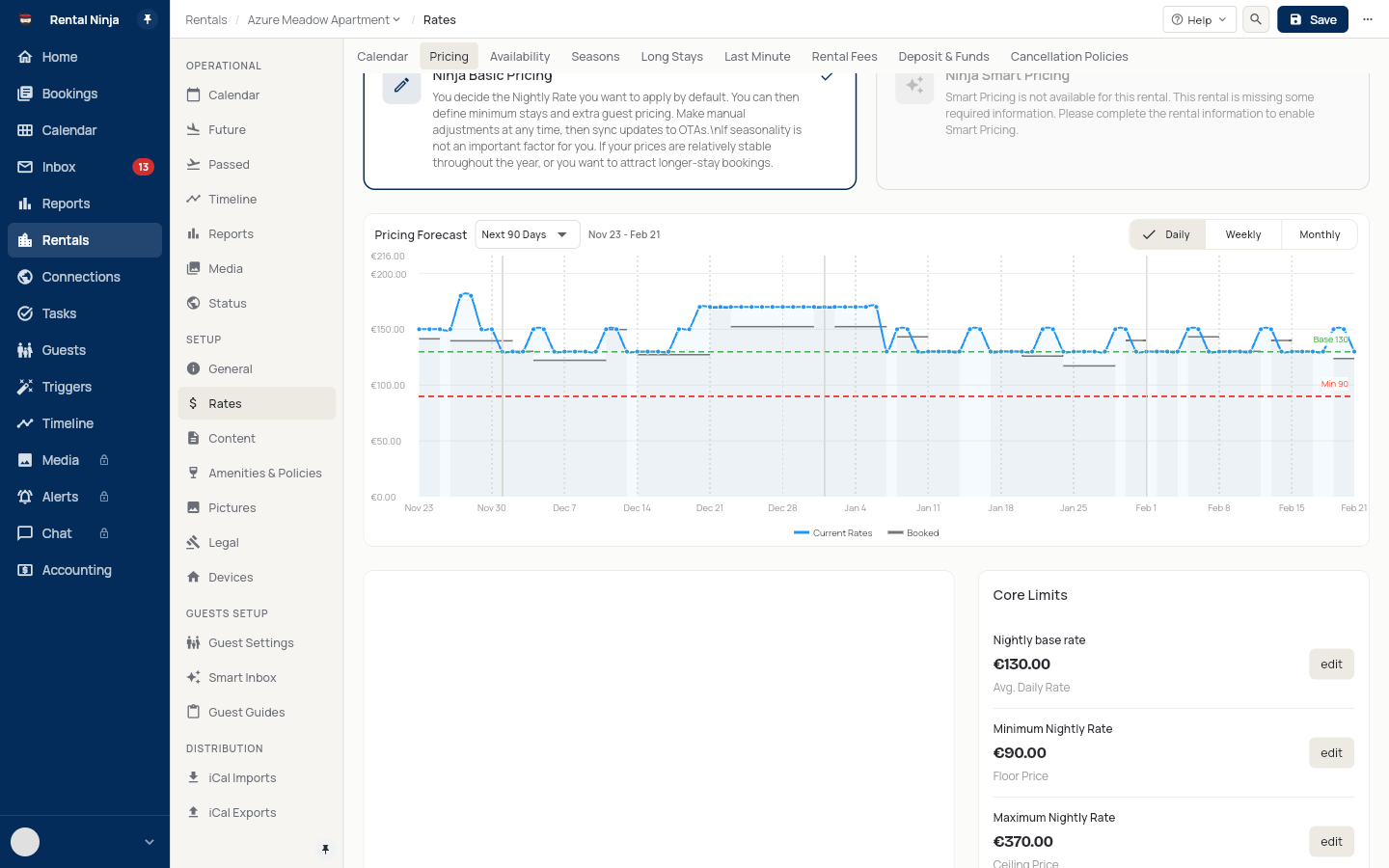
Smart Pricing sets your rental's nightly prices from market demand and seasonality. Configure it under Rates, in the rental's Pricing tab.
Select the Ninja Smart Pricing card marked Free preview to see the forecast before subscribing.
Why it works this way
When available, the chart previews your Smart Pricing configuration without the prices you set by hand. When you edit the configuration, the preview leaves out minimum and maximum price limits, so it does not promise the price a date will get after you clear your price.
When it is available
Publish the rental through Rental Ninja's channel manager (Publish a rental on channels). The Ninja Smart Pricing card stays disabled until the rental is complete, its location is covered and Smart Pricing has finished setting it up.
You need Edit rental rates & availability (roles and permissions). The rental needs a Rates tab, which not all have.
What you choose
Each Dynamic Strategy setting offers:
- Conservative
- Recommended
- Aggressive
- Custom
The settings control:
- Base Price Method: the average yearly rate before demand and season. Choose Custom to enter a Custom Base Rate.
- Weekend Method: how weekend nights are priced.
- Seasonality Method: how strongly prices follow seasons.
- Last Minute Method: how prices change as a date nears.
- Far Future: how prices change for dates further ahead.
Core Limits has 2 optional nightly limits:
- Minimum Nightly Rate
- Maximum Nightly Rate
Extra Guest Price is the default amount for each guest above the rental's Sleeps.
Before the rental uses Smart Pricing, Suggest can propose a starting configuration close to its current prices.
Why it works this way
When available, Suggest proposes a starting configuration close to the rental's current prices.
When prices change
Saving Smart Pricing settings queues a price update. So do the nightly update for active accounts and new recommendations from Smart Pricing. Your calendar and website use them once stored. Rental Ninja sends them to the channel manager in the regular update. Allow time for updates to reach your channels.
What stays in your hands
Smart Pricing updates the nightly prices in your calendar. Successful recommendation pulls also save the returned base rate. It doesn't open or close dates.
Your Rules still set minimum stay, check-in and check-out days, locked seasons and each season's extra guest price. Your Long Stays discounts still apply. Minimum stay, check-in days and discounts covers the rules.
The Last Minute tab disappears while Smart Pricing is on. Last Minute Method takes its place.
Prices you set yourself
A price you set for a date in the calendar wins over Smart Pricing for that date. Clear it to fall back to the stored price. Change prices and availability for some dates covers setting them.
Why it works this way
Clearing a price you set for a date hands that date back to Smart Pricing. Otherwise the old amount would linger and come back as the price for that date.
Channels and markups
Smart Pricing normally takes your channel markups into account when it suggests nightly rates. The prices you set in the calendar and the limits in Core Limits are before channel markups.
The markup adjustment normally moves by at most 0.5 percentage points per update while Smart Pricing is on. Charge more on some channels explains markups.
Pause Rate Sync
Pause Rate Sync appears while you preview or use Smart Pricing on a rental that's ready. Choose a pause of 1, 3, 6, 12, 24, 36 or 48 hours. Choose Sync to resume. While using Smart Pricing, select Save to apply it.
While paused, the regular update skips prices but still sends availability and discounts. Your calendar and website keep using the new prices. The next regular update after the pause sends the prices again.
Cost
Smart Pricing may cost extra for each rental. Contact our team for pricing details. Where billed separately, subscribing adds the rental to your subscription.
Set it up
- Go to Rentals and open the rental.
- Open Rates, then Pricing.
- Select the Ninja Smart Pricing card once the rental is ready.
- Adjust the methods under Dynamic Strategy, or select Suggest. Review the suggestion before applying it.
- Edit limits or extra guest price under Core Limits. Set Maximum Nightly Rate at or above the stored base rate, or leave it blank.
- Check the Pricing Forecast chart.
- Review the subscription warning, then select Subscribe.
- Confirm the cost if it appears.
- If new limits leave any calendar prices out of range from today onward, keep those prices or adjust them to the limits.
Later changes use Save. The same choice applies.
Good to know
- Partner brands without a channel manager can't use Smart Pricing. A rental whose rates come from an external integration or an API can't be switched.
- A season can override the default extra guest price.
- With Custom under Far Future, set a number of days ahead. Future Min Stay raises a lower minimum stay from your rules to your chosen value from that date onward.
- In the app, confirm calendar prices outside your nightly limits before saving. Prices below 1.01 in the rental's currency are still rejected.
- The gradual markup limit doesn't apply to rentals created in the last 24 hours. An unset or zero previous markup adjustment also bypasses it.
- In preview, the pause starts when you subscribe.
- The Smart Plan includes Smart Pricing, so no cost confirmation appears on that plan.
Why it works this way
The Smart Plan is a flat per-rental plan that bundles Smart Pricing with the other smart features, so on that plan Smart Pricing is not billed on top.
- Unsubscribing ends future Smart Pricing charges for the rental but doesn't refund the current period (your subscription and invoices).
Warning
Subscribing deletes Last Minute discounts and clears overrides from today onward if they cover more than 100 dates. Neither is restored.
If activation fails, nightly limits and extra guest price stay saved. Chosen calendar price adjustments can still apply.
Imported daily prices are deleted before activation, even if it fails. Your seasons remain.
Note
To leave Smart Pricing, select Unsubscribe under Danger zone. Check the Nightly base rate, which must be above 0. Select Save and confirm Remove Smart Pricing. The rental goes back to seasons, and your season prices return. Rental Ninja sends them in the regular channel manager update. The prices you set for dates stay.
FAQ
Why is the Ninja Smart Pricing card greyed out?
The rental isn't published through Rental Ninja's channel manager yet (Publish a rental on channels), its required details are incomplete, Smart Pricing hasn't finished setting the rental up, or Smart Pricing doesn't cover its location. If the card asks for missing details and they're complete, the setup or the location may be the reason, so contact support.Why did the price of one date not change?
Check whether you set a price for that date in the calendar. A price you set wins over Smart Pricing for that date. Clear it in the calendar to hand the date back. The calendar falls back to the stored price, which may not change until Smart Pricing recalculates it. If only a channel shows the old price, Pause Rate Sync may be holding it.Where did my Last Minute discounts go?
Subscribing to Smart Pricing deletes them, and the Last Minute tab disappears. The discounts can be deleted even if activation fails. Leaving Smart Pricing doesn't bring them back. Smart Pricing has its own Last Minute Method under Dynamic Strategy.Do I still enter a nightly base rate?
Not while Smart Pricing is on. The Nightly base rate field is hidden, and Base Price Method replaces it. If you leave Smart Pricing, the field comes back with the stored base rate, and you can change it.Will guests on Airbnb see exactly the price Smart Pricing sets?
Not necessarily. Markups, fees and taxes can change what a guest sees. Why prices look different on Airbnb and Booking.com explains each layer.Did this solve it?
Thanks. Glad it helped.
Sorry about that. Ninja Agent can answer from this article, or you can write to support.