
The bookings list
Choose a booking view, narrow the list, read its indicators and export arrivals or departures.
- Reference
- Bookings
- Web
- iOS
- Android
Updated November 6, 2026
How it works
Find stays across your rentals and spot bookings needing attention in Bookings. You can also export arrivals or departures.
The list uses the rentals you have access to.
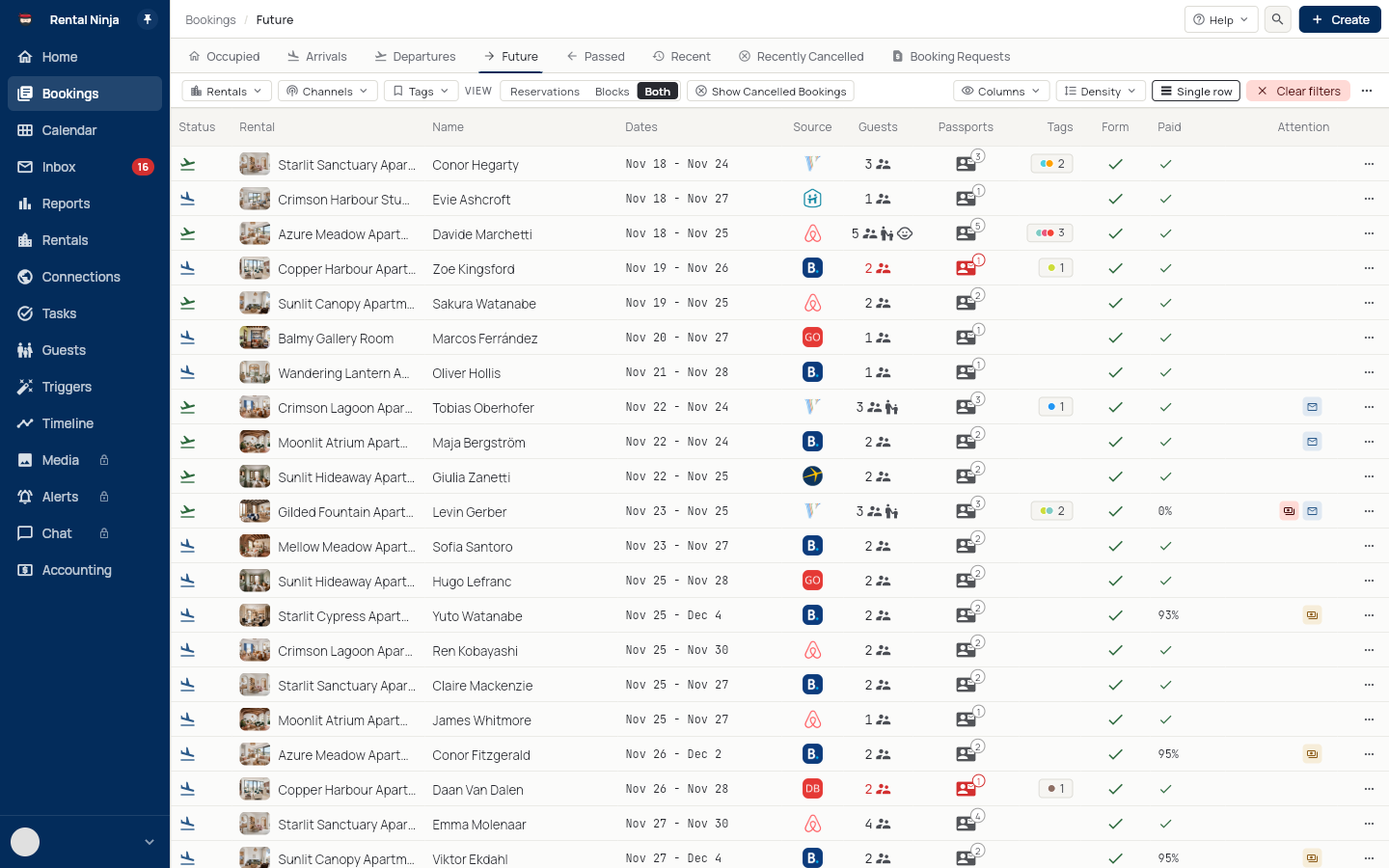
Choose a view
Bookings groups stays into views for occupancy, arrivals, departures and booking history.
| View | What it selects |
|---|---|
| Occupied | Stays overlapping today, including arrivals and departures today. |
| Arrivals | Bookings with check-in in your selected date range. |
| Departures | Bookings with check-out in your selected date range. |
| Future | Bookings with check-out at or after the start of today. This includes ongoing stays, not just future arrivals. |
| Passed | Bookings with check-out at or before the start of today. |
| Recent | Bookings ordered by creation date, newest first, rather than by arrival date. |
| Recently Cancelled | Cancelled bookings selected by cancellation date, rather than stay dates. |
| Booking Requests | Booking requests. |
For cancellation instructions and finding cancelled stays, see Cancel a booking.
Narrow the list
Filter by rental and booking source.
The date-range control appears on Arrivals and Departures. It also appears on Recently Cancelled. The bookings tabs share the range.
Use the booking/block and cancellation controls offered by the current view to adjust what appears.
For missing rentals or differences between team members' access, see Roles and permissions.
Read a booking row
Rows can show:
- The rental and guest name.
- Dates and booking source.
- Guest count and tags.
- Pre-check-in status and payment progress.
The layout changes with the available width.
Select a booking row to open its details. On desktop, the details open in a panel beside the list. On mobile, they open in a sheet.
Attention icons can flag:
- An alert.
- An incomplete pre-check-in form.
- An outstanding booking balance.
- An unread message.
Select an attention icon to open the relevant part of the booking. An alert icon alone does not identify the problem; open it to read the alert.
For checking and completing forms, see Review, complete or export a check-in. For the contents of an individual booking, see Booking details.
Export arrivals or departures
Export is offered on Arrivals and Departures.
- Open Arrivals or Departures.
- Choose the rentals and date range.
- Check the cancellation and block settings.
- Select Export and confirm the export request.
- Open the download link sent to your email. The file is an Excel XLS workbook, not an immediate browser download.
The workbook lists bookings individually.
The PRICE column is the booking price, not the amount collected. References and phone numbers are stored as text so spreadsheet software does not convert them into large numbers or drop a leading +.
Create a booking or block
Select Create to open the creation form. For reservation setup, see Create a booking. For closing dates without a guest stay, see Block dates.
Good to know
- Booking Requests appears when your account has permission to see requests.
- Booking-tag filtering is also available when you have permission to see tags.
- Check the date range when switching views.
- Some row columns also depend on your permissions.
- In the Paid column, payment progress shows a percentage below full payment and a check mark at 100% or more when payment information is available to you.
- Create is available when your account can manage bookings or block dates.
If a booking is missing, review these filters before changing the booking itself:
- Selected rentals and source.
- Tags and date range.
- Cancellation settings.
The export control is hidden until the list has loaded results. Export is not offered on the other list views.
Note
Source and booking-tag filters used on screen are not passed to the export. Do not assume the workbook contains exactly the rows currently displayed.
A blocks-only selection does not restrict the export to blocks. Check the workbook before using it.
Each export must contain fewer than 20,000 bookings. An empty result cannot be exported. Narrow the rentals or date range if the selection is too large.
Your permissions control which client columns appear in the workbook. They also control money and payment columns. With cost-breakdown access, it also includes itemised rental prices, fees and taxes in a breakdown sheet.
Did this solve it?
Thanks. Glad it helped.
Sorry about that. Ninja Agent can answer from this article, or you can write to support.