
Change a booking
Edit the fields available for a booking's source, keep or recalculate its price, and add fees.
- How-to
- Info Edit Booking
- Web
- iOS
- Android
Updated November 6, 2026
How it works
Change a booking's stay, guest count or price in Info, using Edit Booking. You can keep or recalculate its price and add fees.
You need access to the rental and permission to manage bookings. See Roles and permissions.
What you can change
For a booking created manually in Rental Ninja, you can change:
- The rental and selected client.
- The guest count and dates.
- The booking source.
You can also edit:
- The rental price and discount.
- The down payment and damage deposit.
The final price is calculated from the breakdown.
Keep or recalculate the price
When the price is editable, a saved booking opens with Freeze on. Changing its rental or dates does not automatically replace its saved price with a new quote. The same applies to guest-count or source changes. This prevents an edit from substituting your current rates for the booking's existing price.
Why it works this way
Keeping the saved price prevents a change of rental, dates or guest count from replacing the booking's price with a new quote from your rates.
When the price is editable, you have 3 choices:
- Leave Freeze on to prevent an automatic new quote while changing the stay.
- Type the revised price or discount yourself.
- Turn Freeze off before changing the rental or dates to request a new quote. Guest-count or source changes also request a quote with Freeze off. The required booking details must be valid.
Turning the switch off alone does not reprice the booking.
Recalculate in Prices requests a fresh quote without waiting for another stay change. Review the resulting amounts before saving:
- Rental price and discount.
- Down payment and damage deposit.
Recalculation leaves the damage deposit unchanged if the booking has a deposit return task, even if that task is complete.
Using that price recalculation action on an existing booking preserves its fee lines. Fee recalculation is a separate action in Fees.
Add or adjust a fee
The fee picker initially uses fees attached to the booking's original rental. If you change the rental, check the fee options and the full breakdown before saving.
Check the booking's existing fees before adding another fee.
On desktop, Add Fee appears in Fees when there's a fee to add. Open it and choose an available fee. On a phone, open the section's actions menu and choose the fee to add. Adjust the fee's rate and quantity where those controls are offered.
Fees added in Rental Ninja can be edited or removed.
Warning
Adding a fee updates the booking total. Check what remains to collect and arrange collection; adding a fee is not recording a payment.
When editing is unavailable
See Good to know for source restrictions, booking statuses and the editing cutoff.
To end a stay rather than modify it, see Cancel a booking.
Set it up
- Open the booking and select Info.
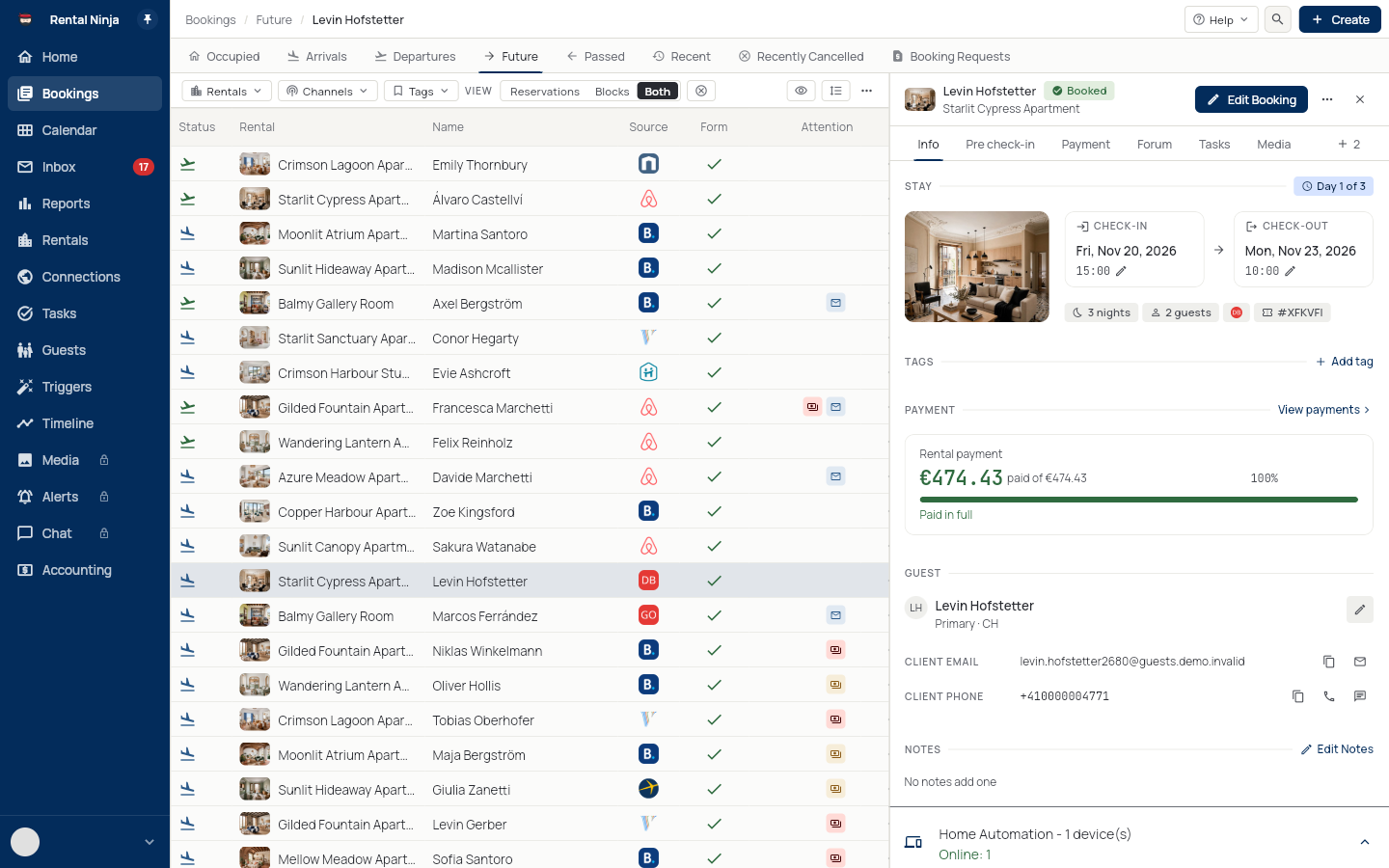
- Choose Edit Booking.
- When the price is editable, keep Freeze on if you want to prevent an automatic new quote.
- Change the enabled fields. When changing dates, check both the intended check-in and check-out dates. Review any date warnings.
- Review the full breakdown and final price:
- Price and discount.
- Fees and down payment.
- Damage deposit.
- Select Save. Correct any highlighted form errors before saving again.
- Review the saved booking and its payments. Check its tasks and door access.
Good to know
A manually created booking has different controls from a channel booking or an iCal import. Locked fields are not changed through this form.
If you cannot edit a booking from another PMS here, make the change in that PMS.
For an iCal import that opens for editing, you can select a client and change the guest count. You can also edit the price breakdown. Its dates and rental remain locked. Its source also remains locked.
Only for All-in-One
For bookings received through the built-in channel manager, you also need permission to edit fees and taxes.
- Airbnb and Booking.com keep the client selector and guest count locked. Dates and source are locked too. The base price is also locked. For changes to the stay or guest details, start on the channel.
- Booking.com allows a rental change. The alternatives are limited to the original rental's city when that city is set. Check the rental details before choosing an alternative. Airbnb does not offer that rental change here.
- Vrbo allows date and guest-count changes. You can edit its rental price and discount. You can also edit its down payment and damage deposit. Its client and source selectors remain locked. Channel-supplied fee rows remain read-only.
- Other imported bookings can offer different controls. Use the enabled fields rather than assuming every channel booking has the same restrictions.
A Booking.com rental change here does not move the reservation in the Booking.com extranet. Confirm the arrangements with the guest. See Booking.com bookings and Vrbo bookings.
The freeze switch and price recalculation are not offered when the base price is read-only. You can add fees through the edit form even when the channel's base price is locked. Channel-supplied fees and imported tax rows remain read-only.
If a fee is missing, check its rental setup in Fees, services and taxes.
If automatic re-quoting cannot find a quote, the breakdown is hidden. Matching fee rates and quantities can also change during automatic re-quoting. Review the full breakdown before saving.
Cancelled, archived, expired and rejected bookings do not offer booking editing. Channel-manager bookings also lose the edit control when their check-out is on or before the day 8 weeks ago. Manually created bookings do not have that age cutoff.
If you changed the check-in date, resend the current guest link rather than reusing a link containing the old arrival date. See Send the check-in link.
Did this solve it?
Thanks. Glad it helped.
Sorry about that. Ninja Agent can answer from this article, or you can write to support.