
Create a rental
Add a property to Rental Ninja with its name, owner, capacity, type and currency, then finish it so it can go to your channels.
- How-to
- Rentals Create Rental
- Web
- iOS
- Android
Updated October 29, 2026
How it works
Add a property to your team from Rentals, then Create Rental. The form asks for its name, owner, capacity, type and currency. Fill in the rest of the rental details in its tabs, as How a rental is set up explains.
Only the team owner and administrators can create rentals. Whoever creates one gets access to it straight away. Other team members need rental access to open it.
Why it works this way
Whoever creates a rental gets access to it straight away. Without that, an administrator who isn't the team owner couldn't open the rental they had just created.
What you enter
- Name: use 3 to 50 characters. You can add a Public Name later. Guest message templates can use either Name or Public Name. The public-name placeholder falls back to the name when no public name is set. Guest guides, the pre-check-in form and parts of the guest portal show the name. Never put anything private in it.
- Select or Create an Owner: the app asks for one. Select Create Owner in the list to add a new one. Enter the owner's name and email, then select Save. See Rental owners.
- Sleeps and Sleeps Max: from 1 to 100 guests. Sleeps Max must be at least Sleeps.
- Rental Type: starts on Apartment.
- Currency: starts on your team's currency.
Warning
You can't change the currency after you save. Details under General shows it, but it can't be edited.
What the new rental starts with
- Its country starts as your team's country. If you can edit the address, set it under Location. See Location, licence and legal details.
- Review the rental's pre-check-in form settings before taking bookings.
Only for All-in-One
On a plan that includes the channel manager, the new rental starts marked as published in Rental Ninja; see Publish a rental on channels for the next steps. Its first update to the channel manager waits until the rental has everything it needs. Publishing to the channel manager does not automatically publish the listing on your channels. You still need to add it to each channel connection where you want it listed, even if the channel is already connected.
Why it works this way
On plans without the channel manager, you choose whether to publish each rental to the channel manager. You still need to connect the rental and publish it on each channel where you want it listed.
Your subscription
When Rental Ninja bills your subscription, it recounts your rentals about a minute after you create one and updates your subscription if the count changes. A yearly subscription is invoiced for the rest of the period as soon as the billed count goes up. A monthly one is charged pro rata. See your subscription and invoices.
Set it up
- Go to Rentals.
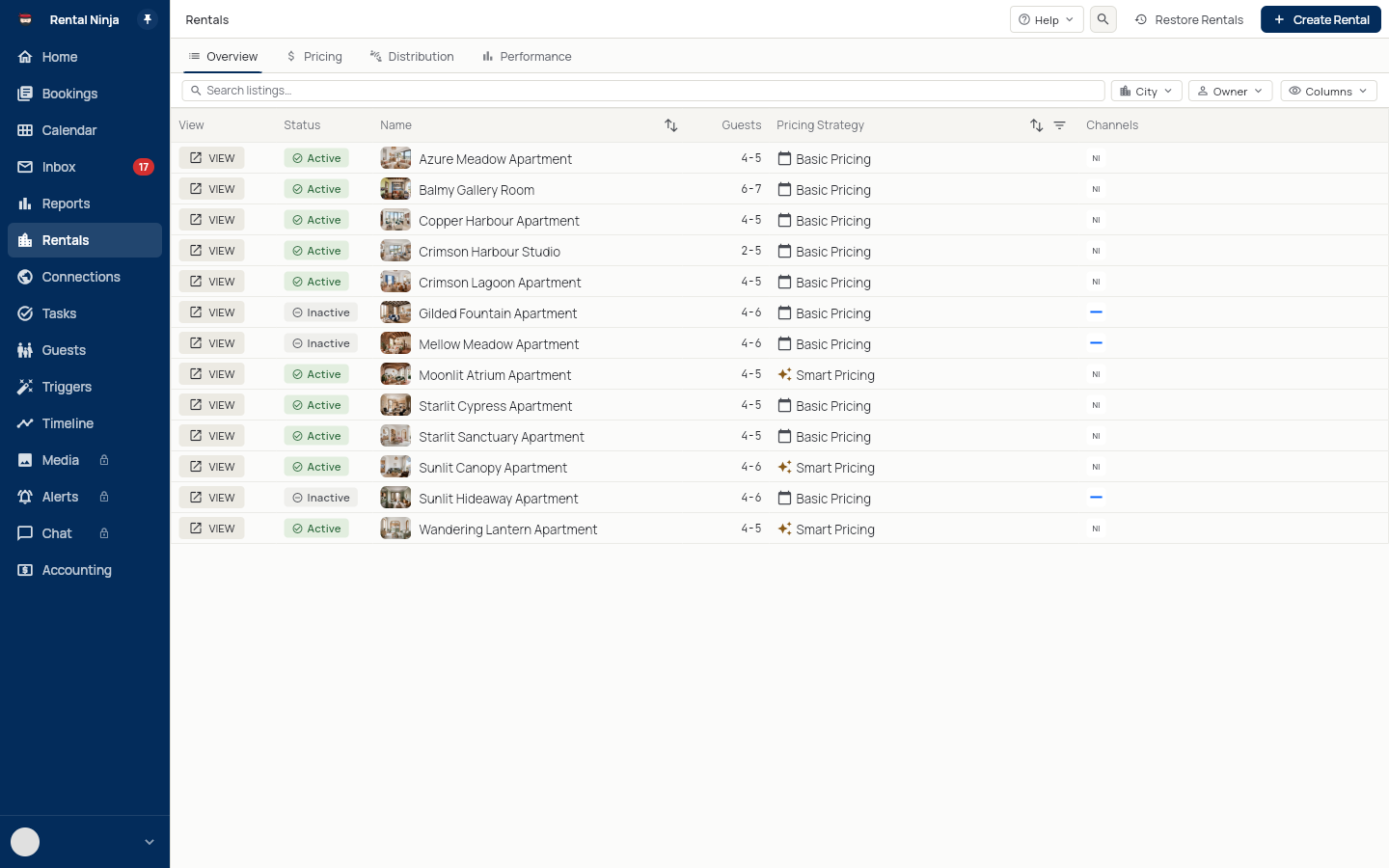
- Select Create Rental.
- Enter the Name.
- Choose the owner in Select or Create an Owner.
- Set Sleeps and Sleeps Max.
- Choose the Rental Type.
- Choose the Currency.
- Select Save. The new rental opens. The rental counts toward your subscription when Rental Ninja bills it.
- Complete the setup requirements in the rental's tabs. If the Ready to publish card appears, use it to open the available setup steps.
- If you have access to rental location, check its address under General, then Location.
Good to know
- On a narrow screen, tap Add Rentals before selecting Create Rental.
- On some partner brands, rentals come from your PMS and Create Rental doesn't show.
- The creation form accepts 3 to 255 characters for the name, but Details won't save a name longer than 50 characters.
- Another currency is allowed, with a warning that it may cause inconsistencies in reporting.
- On the Smart Plan, Smart Inbox is on.
- Deleting a rental later doesn't automatically refund what you've paid.
Only for All-in-One
On plans without the channel manager included, you publish the rental yourself, and that may cost extra. Contact our team for pricing details. See Publish a rental on channels.
FAQ
Can I change a rental's currency after creating it?
No. Once you save, Details under General shows the currency, but you can't change it, so choose it with care.I deleted a rental from my yearly subscription. Can I create another one in its place at no cost?
Deleting a rental does not automatically refund what you've paid. If adding another rental increases the billed count on your yearly subscription, Rental Ninja invoices the increase for the rest of the period. If you deleted the rental by mistake, you can restore it. A restored rental is billed the same way if it increases the billed count.Why can't I see Create Rental?
Only the team owner and administrators can create rentals. On some partner brands, rentals come from your PMS, and the button doesn't show.Did this solve it?
Thanks. Glad it helped.
Sorry about that. Ninja Agent can answer from this article, or you can write to support.