
One-off jobs
Create a job for a booking, a rental or general work, request checklist media, and edit or delete individual jobs.
- How-to
- Tasks
- Web
- iOS
- Android
Updated November 6, 2026
How it works
Create and assign a one-off job from a booking's tasks tab or the task calendar, without setting up a series. Add a checklist to request photos or videos, and edit or delete individual jobs as needed.
For the other ways jobs are created, see How tasks work.
Choose the job's scope
A one-off job can belong to a booking, belong to a rental without a booking, or have no rental. You choose its dates and assignment. A checklist and inspection are optional.
You need access to Tasks. These steps require the team owner, administrator or rental manager role. For rental work, a named assignee must have access to that rental. See Roles and permissions if someone is missing access.
- For work connected to a stay, open the booking's tasks tab and use its create-job action.
- For work without a booking, you need administrative-task access to use the calendar action. Open the task calendar and select Non-Booking Job. In its form, select a rental or the no-rental option.
Owners and administrators have administrative-task access. Rental managers need the permission to use Non-Booking Job. For a job without a rental, choose an owner, administrator or another team member with administrative-task access as the named assignee.
Request photos or videos
Include at least 1 checklist item when you want photos or videos uploaded to a job. You can import a template containing checklist items during creation.
Why it works this way
Photos and videos belong to checklist items, so a job needs a checklist item before there is somewhere to upload them.
To add an item to an existing job:
- Open the job and choose its edit action.
- Open the checklist editor and add a subtask.
- Enter an item title of at least 3 characters and an optional description. Choose whether a picture is required to complete it.
- Save the item. Save the checklist, then save the job.
The person doing the work opens a checklist item to upload media. The first successful upload can mark that item complete.
Edit a single job
Open the job and choose its edit action. You can change:
- Title and description.
- Priority and timing.
- Checklist.
- Assignment and inspection settings.
Save the job when finished. This edits the opened job.
Delete one or several jobs
To remove one job, open it, choose its delete action and confirm the deletion.
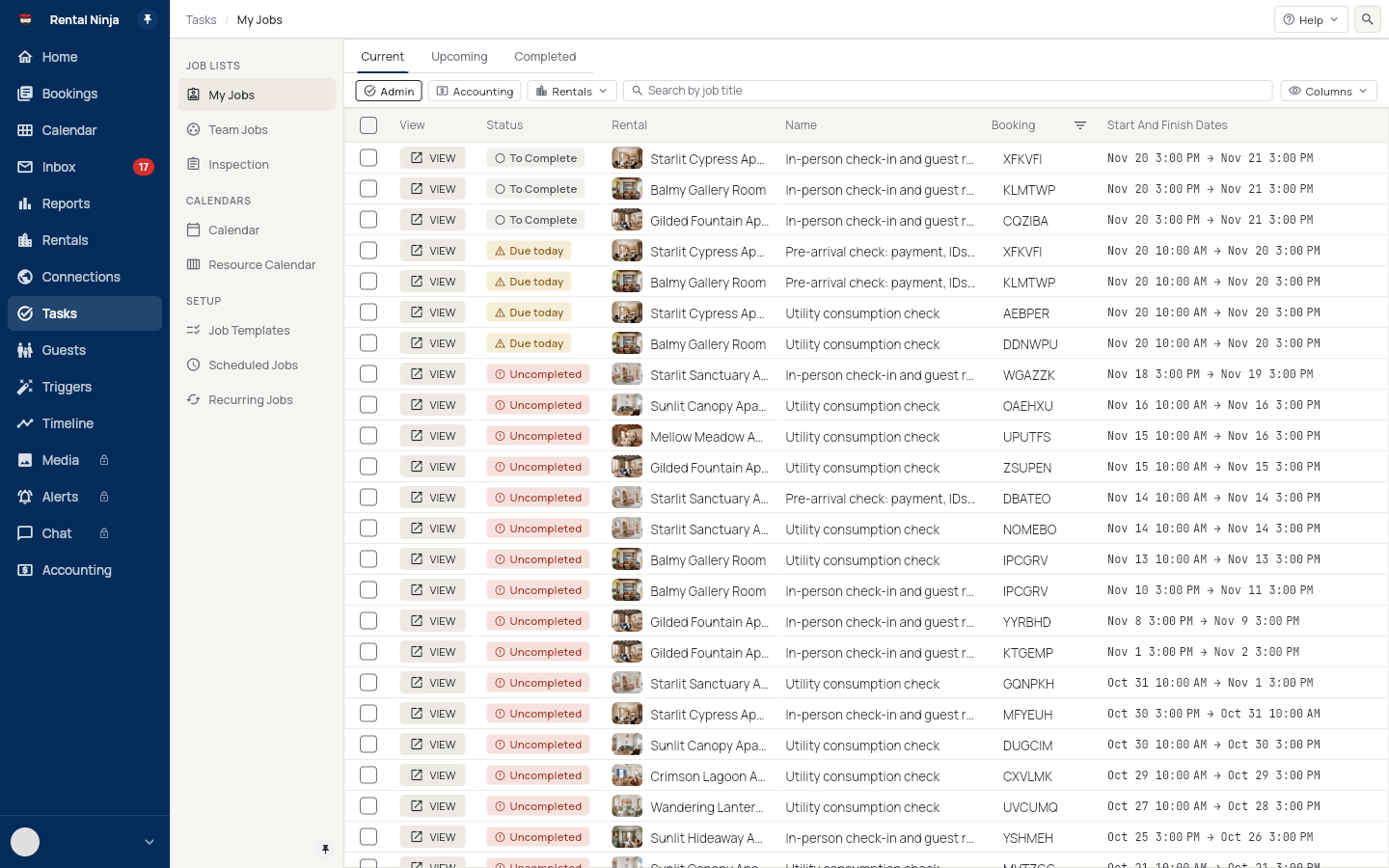
For several jobs, select them in your personal or team job list. Review which jobs you selected before opening the selection actions. Choose the delete action and confirm the deletion.
Set it up
-
Open the booking's Tasks tab and select Create Job. For work without a booking, open Calendar under Tasks instead. Select Non-Booking Job if you have administrative-task access.
-
In the non-booking form, choose a rental or No Rental.
-
Enter a title of 3 to 100 characters. Add a description if needed. Choose the priority.
-
For fixed dates on a booking-related job, leave booking-relative dates off. Choose the start date and time and a later due date and time. Check both before creating the job.
For booking-relative dates, select YES for the booking-relative date setting. Choose a start option under The job can be started... and a due option under The job should be completed before.... If the form flags the combination, change one of the choices before saving.
-
If you want a checklist, import a template containing the items to perform.
-
Choose an assignee. For rental work, you can choose a role instead of a named person.
-
If you want an inspection, enable it. Choose an inspector from the offered list. The inspector must be different from the named assignee.
-
For booking-related work, review whether cancellation should remove the unfinished job. Select YES under Remove upon booking cancellation if you want it removed. See job cancellation rules.
-
Select Create Job to save the job.
Good to know
Booking-date changes do not move a job's custom start or due dates.
If you use booking-relative dates, a booking change can move the job's dates. If the recalculated start is more than 31 days after the check, Rental Ninja can remove the job. Use fixed dates to keep the timing you chose.
For a job starting on a future date, Add Image and Add Video block uploads until the start date.
Warning
Importing a template in the checklist editor replaces the current checklist rather than adding to it. Review the replacement before saving the job; items omitted from the saved list are removed.
If the job comes from a scheduled or recurring series, you are not editing the series itself.
Deleting an individual job leaves its scheduled or recurring series in place. Other occurrences can still be generated.
You cannot delete an unfinished deposit-return job. Bulk deletion skips it and attempts to delete the other eligible jobs.
Did this solve it?
Thanks. Glad it helped.
Sorry about that. Ninja Agent can answer from this article, or you can write to support.