
Booking details
Find the stay, guest contacts, payments, check-in and team activity attached to a booking.
- Reference
- Bookings
- Web
- iOS
- Android
Updated November 6, 2026
How it works
Check a stay's dates, guest contacts, payments, check-in and team activity in its booking details. Start with Info for the overview, then choose the tab for the detail you need.
Open a booking
Open a stay from the bookings list, or select its booking in the calendar.
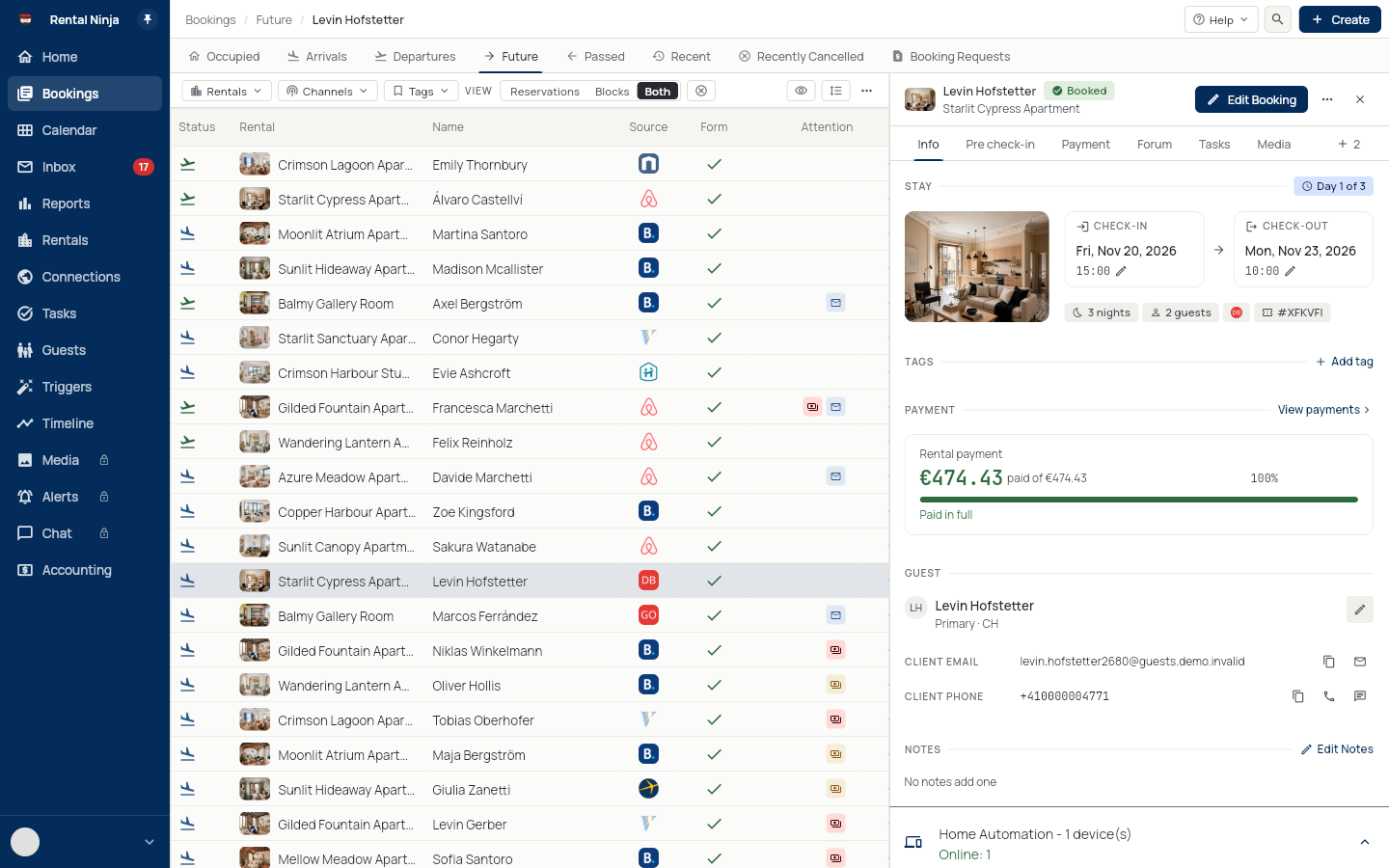
Read the overview
Use Info to check:
- Check-in and check-out dates.
- Expected arrival and departure times.
- Number of nights.
- Guest count.
- Booking source.
In the compact overview, select the displayed reference to copy it.
The guest section shows the linked guest's saved contact details. Email and phone controls let you copy a contact value or open the corresponding contact action.
Choose a detail tab
| Tab | What to look for |
|---|---|
| Pre check-in | Form completion, guest profiles and arrival information. |
| Payment | The cost breakdown and recorded payments. |
| Forum | The booking conversation and comments. |
| Tasks | Linked tasks you are allowed to see, with their completion status. |
| Media | Media attached to the booking. |
| Contract | The booking's rental agreement. |
| Timeline | Activity scoped to this booking. |
Use Review, complete or export a check-in for working with the form and guest documents. For task assignment and completion, see How tasks work.
Understand missing details
Your account's feature access and permissions determine which sections and tabs appear.
Two team members can see different parts of the same booking. Guest contacts, tags, notes, media and financial information have separate permissions. Access to the booking does not automatically enable each of those sections.
The booking details screen and the guest-facing pages serve different purposes. For what guests can open, use The guest portal. For the house guide and its PDF options, use Guest guides.
Good to know
- On a phone, booking details open in a sheet.
- If you cannot open a particular booking, ask an administrator to check your access to its rental. Being able to work on one rental does not give you access to another. See Roles and permissions.
- For a cancelled stay that you cannot find, follow Find cancelled bookings.
- The guest section requires a linked guest. You also need permission to see client details.
- Tags, notes and booking notices depend on the information available on the stay. Your permissions determine which of them you see.
- Connected smart-lock information also depends on your permission to use those devices.
- Pre check-in requires professional-feature access. You also need guest-app permission. Pre-check-in access must be enabled on your account.
- Payment appears with either cost-breakdown or payment visibility. The two sections have separate permission checks.
- Forum requires inbox or comment access. The view you opened must also allow this tab.
- Tasks requires professional-feature access. You also need task-calendar access. The tab is not shown to the Rental Owner role.
- Media requires permission to view booking media.
- The rental must require a contract for Contract to appear. You also need permission to manage the booking's contract.
- Timeline activity is filtered according to your permissions.
Note
Call and WhatsApp controls use phone numbers saved on the guest record. An imported booking can arrive without a phone number. A phone number entered in an unfinished pre-check-in form may not yet be on the guest record. Completing pre-check-in can add the main guest's number to that record. If you see a number in Pre check-in but the buttons are missing from Info, you can dial the number directly.
Why it works this way
The contact buttons don't read the number directly from the pre-check-in form. Completing the form starts a separate update to the guest record, so a completed form doesn't guarantee that the number is already available to the buttons.
If a financial section is missing or shows a different level of detail, have an administrator review your payment permissions. Do not assume that an absent tab means the stay has no payments, check-in or activity.
Did this solve it?
Thanks. Glad it helped.
Sorry about that. Ninja Agent can answer from this article, or you can write to support.