
Change prices and availability for some dates
Override the price, minimum stay or availability of a few dates, or of a whole stretch, without touching your seasons.
- How-to
- Calendar Rentals Rates
- Web
- iOS
- Android
Updated October 29, 2026
How it works
Change prices, minimum stays or availability for selected dates from Calendar or a rental's Rates tab. Use an override for an event weekend, a gap to fill or days you keep for yourself.
What an override changes
An override leaves your seasons alone. You can override the price, the extra guest price, the minimum stay, the changeover and whether a date is open. How rates and availability work explains the two layers.
Your overrides stay when seasons are recalculated. See Good to know for the situations where manual prices or other rate overrides are cleared.
Where to make the change
| Place | Best for | Covers |
|---|---|---|
| Calendar page, drag over dates | A range on one rental | Price, minimum stay, open or closed |
| Calendar page, Bulk Edit | Many dates or rentals at once | Price, Min Stay, Extra Guest, Availability |
| Rental, Rates, Calendar, a date | One range with every field | Price, extra guest price, minimum stay, changeover, closed |
The Calendar page
To see the full action list, show both nightly rates and minimum nights in your calendar display settings. If Min nights isn't listed, show bookings together with nightly rates. Drag across the dates of a rental. Under Pricing & Availability, choose an action:
- Set Price
- Set Min Stay
- Close Dates, which saves the closure without a separate Save step.
The price form has an Also update minimum stay option.
Bulk Edit
Turn on Bulk Edit in the toolbar of the Calendar page. The toggle appears when you can see pricing and the calendar includes nightly prices. The grid shows these fields for each rental:
- Price
- Min Stay
- Extra Guest
- Availability
Double-click each price, minimum-stay or extra-guest cell you want to change and enter its value. To change availability, double-click a cell or select it and press Enter or Space. Save your changes together. Legend & Shortcuts lists the keys, including the one that clears the selected overrides.
One rental, every field
Open the rental, then Rates and Calendar. Select a future date in Yearly or Monthly. Choose Override Rates to open Special Price Setup. Its date picker goes up to 365 days ahead.
Each field has a switch:
- Closed
- Minimum Stay
- Special Nightly Price
- Special Extra Guest Price
- Change Over
Off switches show (using current).
Warning
Switches and values start from the date you opened. Every saved date gets all 5 settings, even untouched ones. On sets the displayed value; off clears the override.
Check existing overrides first. Edit dates separately if values differ. Select Save and confirm any limits warning.
What reaches your channels
Only for All-in-One
Saving overrides queues availability and price updates with a delay of about a minute. The availability update sends open or closed and the changeover to the channel manager. For rentals using seasons or Smart Pricing, it normally carries the minimum stay. It also normally carries the maximum stay when you set one.
Publish a rental on channels covers connecting and publishing each listing on its channels. Minimum stay, check-in days and discounts covers what channels do with them.
What it doesn’t do, and why
-
- Doesn’t
- Keeping prices you set by hand on a rental that a pricing tool connected to your channel manager manages.
- Why
- The pricing tool controls the rental's rates. Rental Ninja clears manual price overrides from today onward when it syncs those rates.
- Instead
- Change the prices in the tool.
Set it up
- Open Calendar from the main menu.
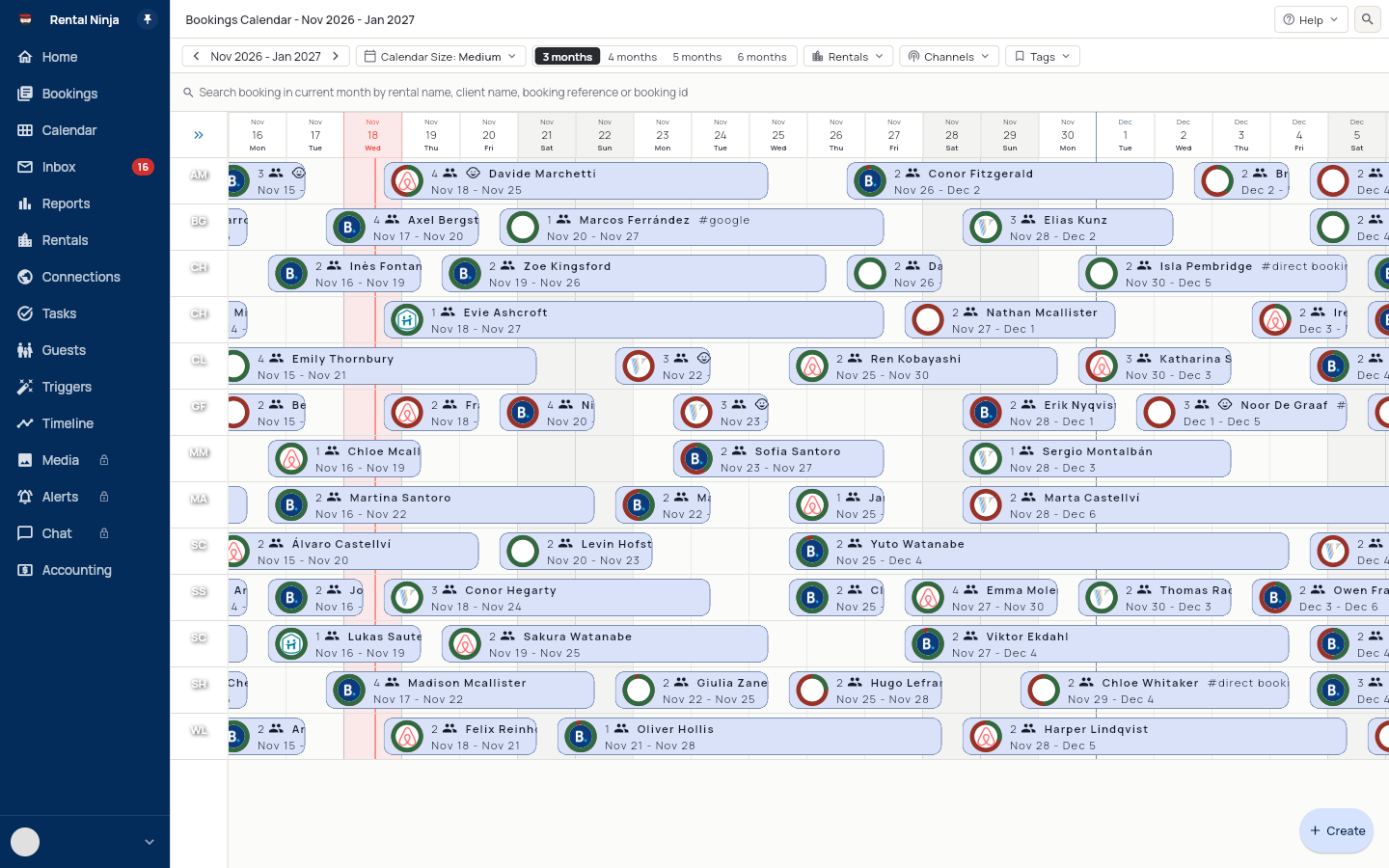
- Show Nightly rates and Bookings in the calendar display settings.
- Drag across the dates of a rental, on or after today.
- Choose Set Price or Set Min Stay.
- Enter the nightly price or minimum stay and select Save. Confirm any warning about saving outside the rental's limits.
- To clear it later, drag over the same dates.
- Choose Clear Price or Clear Min Stay, then confirm.
Why it works this way
With Smart Pricing, clearing a manual price helps prevent an old override from returning as a recommendation.
- Check the Rates calendar of the rental for what each date ended up as.
Good to know
- You need the Edit rental rates & availability permission and access to the rental. Only rentals created in Rental Ninja have a Rates tab.
- If your price is outside the rental's minimum or maximum, confirm that you want to save it anyway. Rental Ninja keeps the price you enter. A nightly price of 1.00 or less in the rental's currency is refused.
- Saving new overrides refuses dates before today. The sheet doesn't offer rate actions when the selection starts before today. Past cells can't be edited in bulk.
- Close Dates and Open Dates both save an explicit value. An open date beats a closure from a locked season. A booked date stays unavailable either way.
- The close action reads Open Dates when more than half of the dates are closed. Clear Price and Clear Min Stay appear when the selection holds the corresponding override.
- Override Rates shows for dates after today. It is hidden on booked dates. It is also hidden on dates priced by a tool.
- Reset Manual Rates, the refresh icon in the day sheet, shows only on dates with imported rates. It clears every override of that date, closure included. On other dates, Clear Price and Clear Min Stay clear only those fields. Use Override Rates, where available, to clear other fields.
- For seasons or Smart Pricing, the day sheet strikes through Price from your rules when a manual price replaces a calculated price, except in locked seasons.
- Turning Smart Pricing on clears manual nightly prices from today onward when more than 100 dates in that period have one. Choose how prices are set compares the options.
Only for All-in-One
- If a tool sets rates through your channel manager, the daily sync clears manual prices, extra guest prices, minimum stays and changeovers from today onward. Dates you closed by hand stay closed.
- These updates require a rental published to the channel manager; see Publish a rental on channels.
- Saving overrides doesn't send prices while rate sync is paused or while a tool connected to the channel manager manages the rental's rates.
- For rentals priced by a tool, the availability update normally omits the minimum stay and maximum stay. Some setups send the rental's minimum stay instead.
- Availability updates mark dates beyond the Availability Window as closed, whatever you set.
FAQ
Why did the price I typed change when I saved?
Rental Ninja keeps the price you enter. If it is outside the rental's minimum or maximum, confirm that you want to save it anyway. A nightly price of 1.00 or less in the rental's currency is refused.Why is a date still unavailable after I used Open Dates?
A booked date stays unavailable. Open Dates saves an explicit open value, which can override a locked season. In All-in-One, availability updates still mark dates beyond the Availability Window as closed.Why hasn't my channel changed yet?
For All-in-One, Rental Ninja queues updates with a delay of about a minute. Neither update is sent for a rental that hasn't been published to the channel manager; see Publish a rental on channels. Saving overrides doesn't send prices while rate sync is paused or while a tool connected to the channel manager manages the rental's rates.Why does dragging over dates open the price form straight away?
When you can edit rates for the selected dates, showing Nightly rates without Bookings or Min nights opens the price form directly. To see the full action list, show bookings together with nightly rates or minimum nights, or show both nightly rates and minimum nights.Did this solve it?
Thanks. Glad it helped.
Sorry about that. Ninja Agent can answer from this article, or you can write to support.