
Connect Google Travel
Add rentals through Connections, complete the channel's content check, and check their recorded connection status.
- How-to
- Connections Channels
- Web
- All-in-One
Updated November 12, 2026
How it works
Only for All-in-One
Add a rental to Google Travel from Connections, in the Channels tab. Run the channel manager's content check and submit your listing there. After you submit it, check its status in Rental Ninja and look for the public listing on Google Travel.
For the guest booking page and what happens to bookings, see Google Travel.
Before you start
Use Rental Ninja in a web browser for these steps. You need access to Connections, a verified team and a completed company profile. Your team also needs the channel manager enabled. See company details and verification and who can open Connections.
Prepare the rental using Publish a rental on channels. That article covers rental readiness, publishing controls and plan conditions.
Review any publishing charge shown in Rental Ninja before confirming. Contact our team for pricing details.
Rental Ninja's publishing check is separate from the content check in the Google Travel setup. Complete the rental's preparation before starting the Google Travel connection.
Set it up
- Open Connections in the web app.
- Open Channels.
- Connect to "Google Travel".
- Choose "Connect your first property".
- Select the rentals you want to add.
- Choose "Next".
- Choose "Next" again.
- Wait for the content check to show its summary.
- When the rental is ready to publish, enter the "mark-up". For help choosing the percentage, see channel markup.
- Choose "Publish Properties".
Check the public listing
After submitting, look for your listing on Google Travel itself.
Note
Submitting the listing and confirming its public visibility are separate steps. The connection status in Rental Ninja does not prove that guests can see the listing.
Check the recorded status
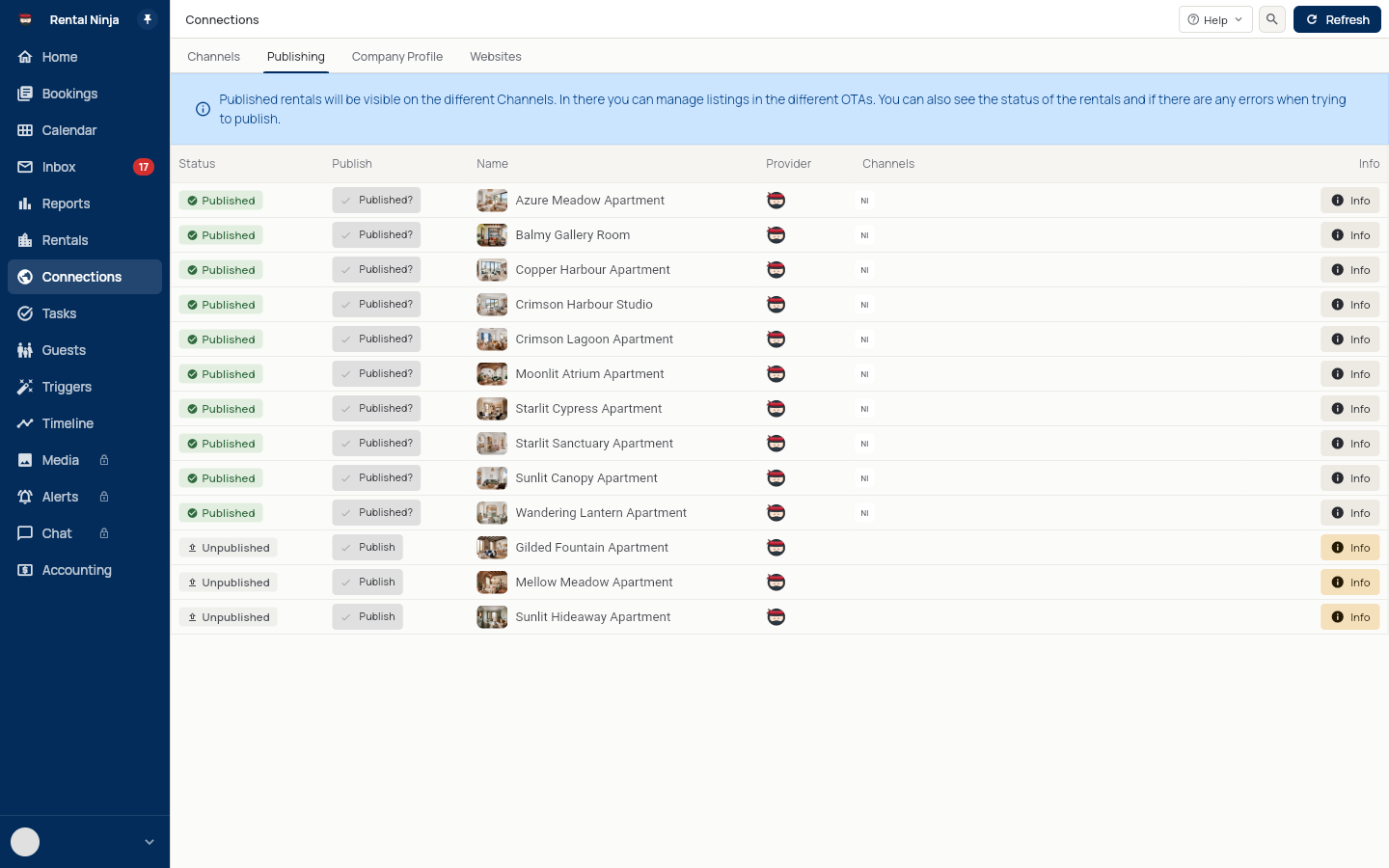
Open Connections, then Publishing. Use Refresh to request updated connection information.
For a rental marked Published (see Publish a rental on channels), select Info or View errors, whichever appears. Both open Distribution Info. If there is a Google Travel entry, check these fields:
- Active
- Content Status
- Availability and Rates Status
These fields show the information Rental Ninja has retrieved. Check the public listing on Google Travel as well.
Good to know
- If Google Travel is already connected, skip step 3. To add another rental, choose "Add property" in step 4.
- If the content check lists missing details, correct them. Run the check again before continuing.
- If the channel manager shows "Pending" for the listing, check the listing on Google Travel. Pending alone does not tell you whether the listing is visible.
Why it works this way
Google controls publication, so check the public listing on Google Travel rather than relying on the connection status alone.
- If the recorded information looks out of date, check the public listing. Contact support if the recorded information still looks out of date or the connection needs attention.
- If a publishing error identifies a detail to fix, correct it before retrying. See Fix a channel sync error for the different error surfaces and what to check.
Did this solve it?
Thanks. Glad it helped.
Sorry about that. Ninja Agent can answer from this article, or you can write to support.