
Review, complete or export a check-in
Follow every check-in, fix or complete one yourself, and export the signed records the police can ask for.
- How-to
- Guests Pre Check-Ins
- Web
- iOS
- Android
Updated October 29, 2026
How it works
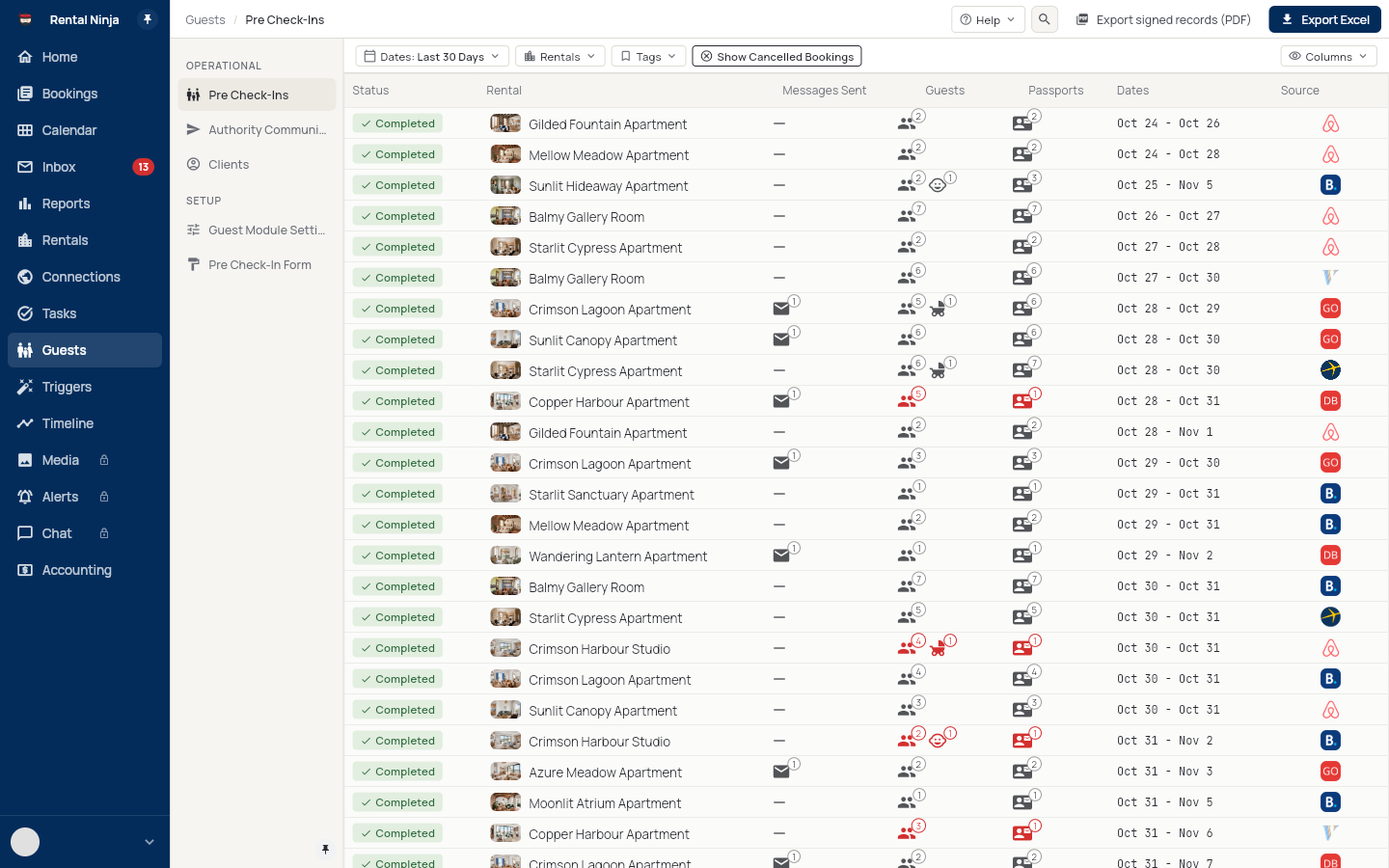
Review check-in progress and export Excel files or signed records from Guests > Pre Check-Ins. Open the booking's Pre check-in tab to correct, complete or reset one.
Every booking on a rental with a pre-check-in form has its own check-in. A check-in completes on its own once the guests, or you, fill in everything the form asks for.
The Pre Check-Ins list
Each booking's row shows:
- Status
- Rental
- Messages Sent
- Guests
- Passports
- Dates
- Source
Guests is how many people the booking is for, and Passports how many have given their details.
| Status | Meaning |
|---|---|
| Completed | The check-in is complete. |
| Pending | The check-in is unfinished, including half-filled forms. |
The list opens on the last 30 days, cancelled bookings included. Filter it by rental, booking tag and check-in dates.
Selecting a row opens the check-in; to complete or reset it, select View Booking.
Complete, reopen or reset
Besides the links in Send the check-in link, the menu of the booking's Pre check-in tab has three actions:
| Action | Shows when | What it does |
|---|---|---|
| Complete | The check-in is not complete | Marks it complete, even with details missing. Sends the completion emails. The booking takes the arrival and departure times, and the client the email and phone. |
| Mark as Incomplete | The check-in is complete | Changes the status only: nothing is sent now or to the police. Reminders the guest hasn't had yet go out again. |
| Reset | The booking has a check-in | Deletes the check-in, every guest on it and its record of messages sent. Reminders start over. An empty check-in takes its place. |
Warning
Reset deletes every guest's documents, photos and signature for good, and leaves what was already sent to the police as it is.
Fix a guest's details
Under Guests on file, select the pencil on a guest's row, change what you need and select Save. The main guest must be 18 or over at check-in, also when you type or scan their ID.
Why it works this way
The main guest must be 18 or over at check-in, and the rule also applies when you type or scan a guest's ID yourself. Without it, a scan from the app could leave a minor as the main guest.
Select Add Passport and choose:
- Adult
- Child
- Baby
- Main Guest, only while there is none.
To take one off, open them and select Remove. The guest counts follow both changes.
Under Number of guests you change the counts, normally up to the rental's maximum occupancy. Without a maximum occupancy, the usual limit is 20.
Times set under About arrival also become the booking's expected check-in and check-out times.
A guest's own Reset clears the documents, photos or signature you pick, and Reset All clears their typed details too.
Add documents yourself
Open the guest, choose the document type, then upload it.
Images you add are deleted on the rental's usual schedule.
Exports
Both exports use the list's filters and arrive by email. Download Export links expire after 30 days; weekly cleanup deletes files older than 30 days.
Export Excel sends an .xls file with one sheet of guests and one of check-ins, up to 1000 check-ins, as text with no images or signatures.
Why it works this way
SES.Hospedajes doesn't show the guests' signatures and the Excel export has none, so the signed records are the copy you can hand to the police when they ask.
Export signed records (PDF) asks for a Document type:
- Spain: parte de entrada de viajeros (in Spanish). SES.Hospedajes submission summary when available: date, batch reference and status, not the report.
- Generic guest registration record, in your team's language.
You get a ZIP with a folder per rental and one PDF per stay, named by check-in date and booking reference, up to 400 stays.
Each record shows the property and its registration number, the host, the main guest, the stay, and every guest with whether they signed. A sheet per adult follows, with their details and signature.
Tip
The host signature on each record is the rental's Contract Signature, under Legal. Add it before you export.
What it doesn’t do, and why
-
- Doesn’t
- Removing a guest card with a name, birth date, document number, address or contact details by lowering the guest count.
- Why
- Lowering a count keeps cards with a name, birth date, document number, address, city, postcode, email or phone, rather than deleting cards by position.
- Instead
- To remove another guest, open their card and select Remove. The main guest cannot be removed this way.
-
- Doesn’t
- Downloading an export more than 30 days after you asked for it.
- Why
- Export files hold guests' personal details. The link expires after 30 days, and the file is deleted in the next weekly cleanup once it is older than 30 days.
- Instead
- Export again with the same filters.
Set it up
- Go to Guests, then Pre Check-Ins.
- Set the dates of the stays you need.
- Choose the rentals.
- Select Export signed records (PDF).
- Choose the Document type.
- Select Export.
- Open the email "Your export is ready!".
- Select Download Export within 30 days.
Good to know
- The list needs a paid plan, and the Guest App module and Client Details permissions. There is no status filter.
- A cancelled booking shows Canceled, and a block shows Unavailable.
- Differing guest and passport counts turn red after a guest starts or the check-in completes.
- Turn on Based On Checkout to filter by check-out dates. Turn off Show Cancelled Bookings unless you need them.
- Complete and Mark as Incomplete need a client on the booking.
- For booked stays, completion or later guest changes can trigger reporting to your connected police registry. The check-in must be complete. Registry rules and booking dates apply. Changes are considered up to 10 days after check-out.
- In Spain the signed entry forms must be kept for 3 years, so export the signed records before you reset.
Why it works this way
Spain's guest registration law asks for an entry form signed by every guest aged 14 or over, and for the register to be kept for 3 years from the end of the stay.
Source: boe.es
- The main guest can't be removed.
- If a guest count already exceeds the usual limit, you can keep it up to its existing value.
- Lowering counts can delete spare cards and files, newest eligible first per count. Only names, birth dates, document numbers, country-specific IDs, addresses, cities, postcodes, emails or phones protect cards.
- Document uploads are available when the form requests documents for the guest or ID scanning is enabled for that guest type. Files can be up to 10 MB.
- An ID card asks for Upload Front Side and Upload Back Side. Other documents use Upload Document.
- For guest types with ID scanning enabled, use Quick Upload with DocScan. Select Upload Document to DocScan; successful scans fill in the details. Other uploads aren't scanned; the guest keeps the Document not scanned mark.
- The Spain record is preselected when your team's billing country is Spain. Without a billing country, Spanish or Catalan app language selects it.
- Children and babies appear only in the guest list. An adult who never signed is marked as not signed.
- An empty export is refused: adjust the filters. Too many stays also prevents export: narrow the filters.
FAQ
The police ask for the signed check-ins of the last 3 months for one apartment. Where do I get them?
Filter Pre Check-Ins by that rental and those dates, then select Export signed records (PDF). You get an email with a Download Export link to a ZIP holding one signed record per stay, up to 400 stays at a time.A guest can't upload their ID. Can I add it for them?
Yes. Open the booking's Pre check-in tab, open the guest, choose the document type and upload it. When ID scanning is enabled for this guest type, use Quick Upload with DocScan. A successful scan fills in the details for you.Did this solve it?
Thanks. Glad it helped.
Sorry about that. Ninja Agent can answer from this article, or you can write to support.