
The calendar
See bookings across your rentals, find a stay, and choose which prices and availability details the calendar displays.
- Concept
- Web
- iOS
- Android
Updated November 6, 2026
How it works
Find stays across your rentals in the calendar on the web, iOS or Android. Select a bar to open the booking rather than searching for it in a list.
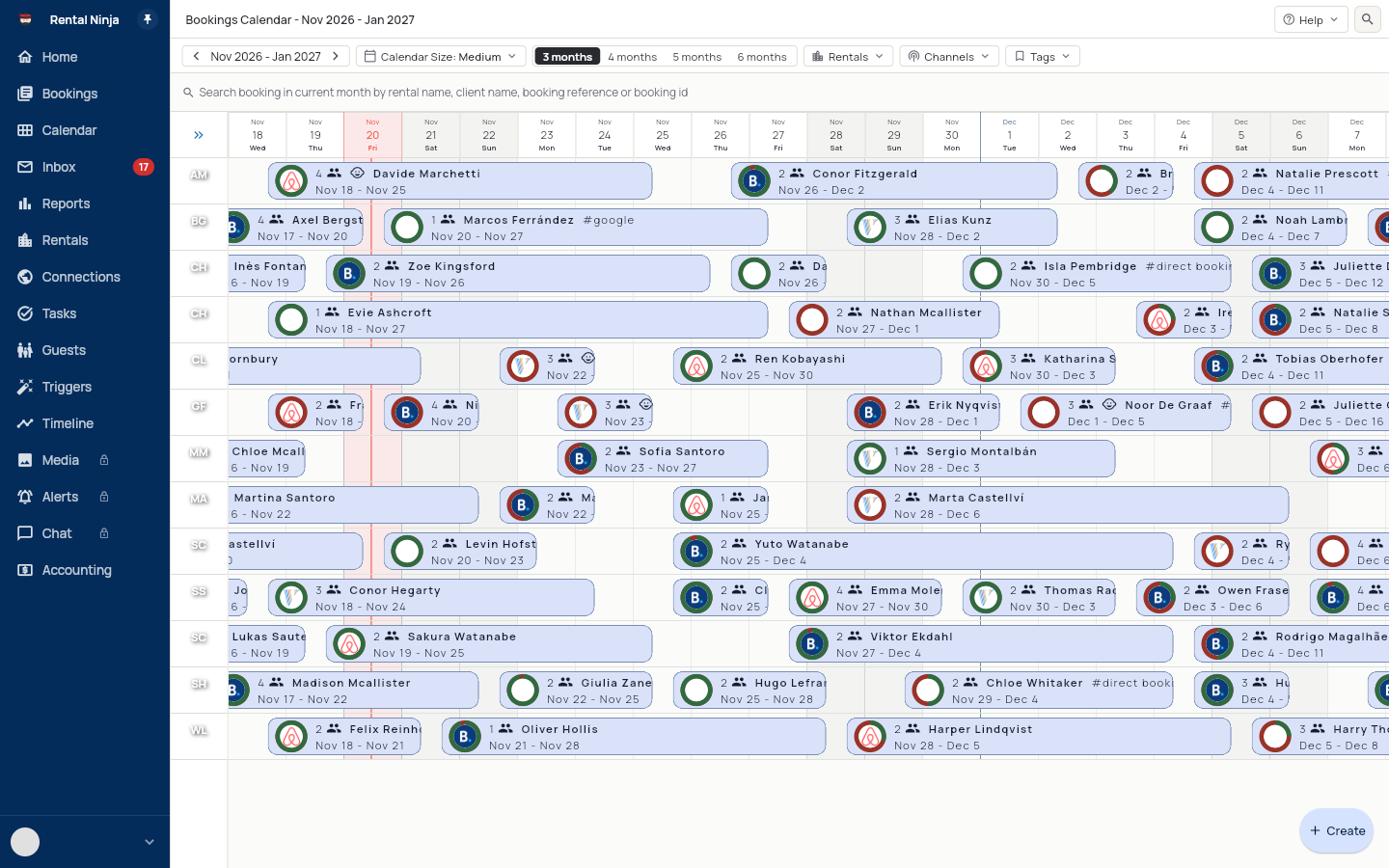
The calendar lays out your rentals in rows, with dates running across the top. Booking bars show stays and date blocks.
There are 2 layouts. The wider browser calendar offers nightly rates, stay restrictions and availability display controls. Bookings Calendar focuses on stays.
What appears on the calendar
The booking bars represent booked stays, unavailable date blocks and tentative bookings.
On the wider calendar, bars can show a channel icon, guest count and guest name. Select the bar to open the booking. In the wider browser view, hovering over it also opens a summary.
Find the rental and dates
Use the rental filter to narrow the rows. In the wider calendar's normal view, source filters narrow the bookings shown.
In the wider calendar, scroll sideways for earlier or later dates. More dates load as you approach either edge. Scroll vertically to reach more rentals.
In Bookings Calendar, choose the month and scroll sideways through the loaded dates. Its search checks the loaded bookings for a guest name, reference, booking number, rental name or city. Change the month if the stay is outside the dates currently loaded.
Choose what the wider calendar displays
In the normal calendar view, open Display Settings using the sliders icon. Display options include:
- Nightly rates for the date's price.
- Min nights for minimum-stay requirements.
- Extra guest price and Changeover for additional rate and arrival/departure information.
- Availability for date-status indicators.
- Bookings for the booking bars.
Turning Bookings off hides the bars. It does not cancel bookings or release their dates. Turn it back on to see the stays again.
Read gaps and availability
A gap between booking bars is not proof that the dates are available. On the wider calendar, turn on Availability in the normal calendar view. Open Legend & Shortcuts to identify the date-status colours and symbols.
Display settings change what you see, not the rental's rules. To make an actual date-specific change, follow Change prices and availability for some dates. To close dates for maintenance or an owner stay, follow Block dates.
Good to know
- iOS, Android and very narrow browser windows use Bookings Calendar.
- Leads and booking requests do not appear as occupied stays. Cancelled bookings are also absent; use Cancel a booking to find them again.
- The details shown on a booking bar depend on the space available. Guest names in the wider calendar depend on your permission to see client details.
- In the wider calendar's normal view, booking-tag filters depend on your permission to see tags.
- Pricing controls depend on your cost-breakdown permission. The Availability control requires that permission too. Some options also disappear when the loaded rentals do not use the corresponding setting. If prices or controls are missing, ask an administrator to check your permissions; Roles and permissions explains financial access.
- If bulk edit is active, leave it before opening Display Settings. If prompted, confirm that you want to discard pending edits.
Note
A source or tag filter can hide a stay without changing its availability. Clear those filters before treating an apparently empty row as free dates.
Preparation time before arrival can close the preceding night, even though the booking starts the following day. When that preceding night is empty, the wider calendar can show it as preparation. With Availability on, the wider calendar can show that night as preparation.
Why it works this way
Preparation time before arrival can close the preceding night, even though the booking starts the following day. When that preceding night is empty, the wider calendar can show it as preparation with Availability turned on.
Did this solve it?
Thanks. Glad it helped.
Sorry about that. Ninja Agent can answer from this article, or you can write to support.