
Door codes and wifi
Where the door codes, door instructions and wifi details come from, and what guests see in the portal and the guide PDF.
- Concept
- Rentals Guest Settings Guests Info
- Guest portal
- Web
- iOS
- Android
Updated October 29, 2026
How it works
Your guests find the door codes, door instructions and wifi details in the guest portal. You fill them in once per rental, on its Guests Info tab, and smart-lock codes arrive by themselves.
Where the codes come from
A booking can carry several codes, and guests see every one of them:
- The rental's Static Door Key Code, the same for every stay until you change it. It suits a key box or a keypad you set yourself. Guests see it under the name in Static Door Code Public Name.
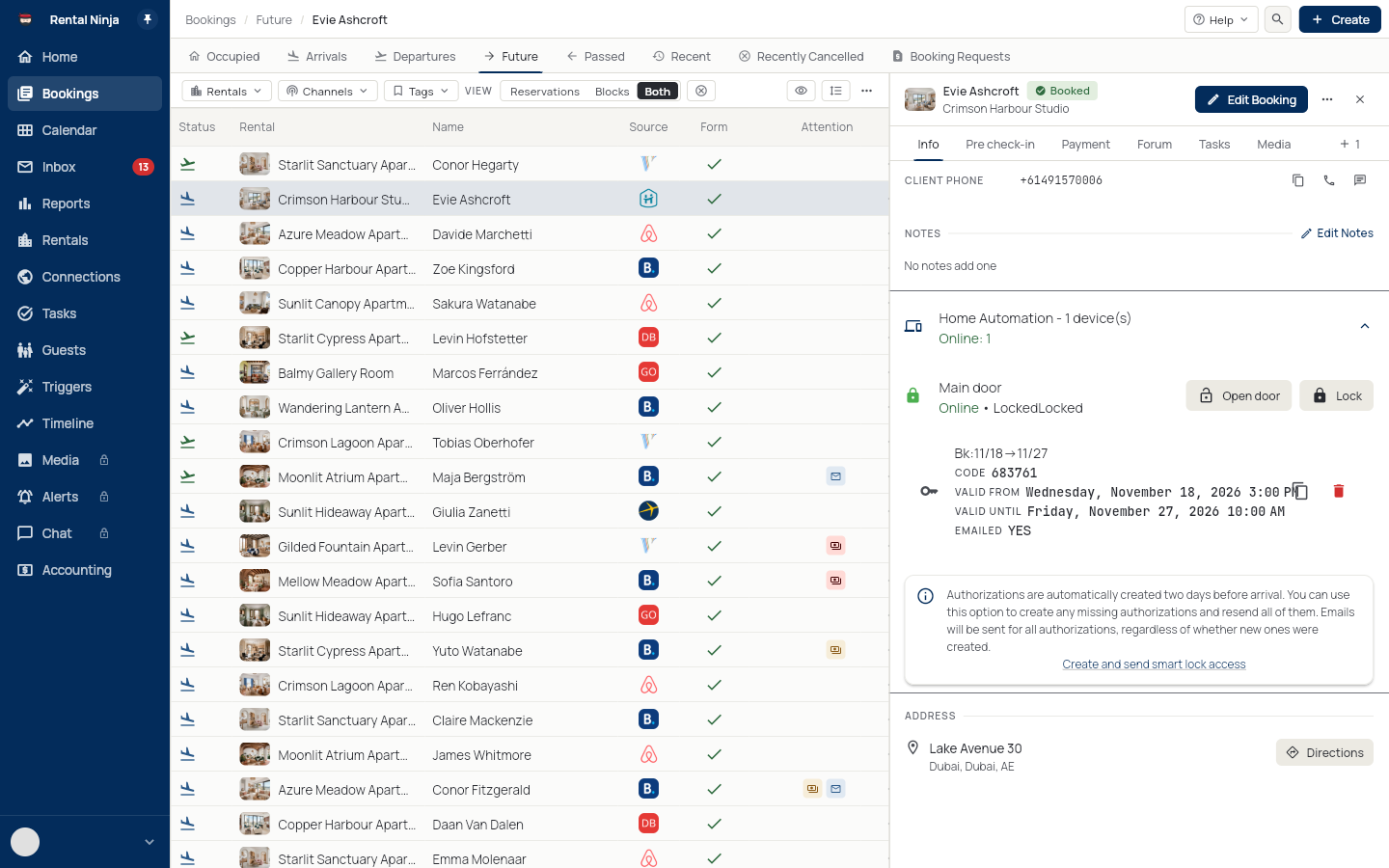
- The stay's codes from a connected smart lock. Automatic code creation can begin on the calendar day before check-in. The lock must be online. They appear on their own with the lock's name and the times they work.
You can check a stay's smart-lock codes on the booking, under Home Automation.
Door instructions
Door Instructions is free text on the Guests Info tab: where the entrance is, how the key box or keypad works, and which lock is where when there are several. Guests see it above the codes, and it is held back together with them.
The door code and instructions wait for the rules in When the door code shows; the wifi doesn't.
What guests see in the portal
When there is something to show, the portal's Home tab has a "How To Enter The Building" row. It opens the door page: the instructions first, then 1 card per code with a copy button. A keypad code is labelled with the lock's name.
While the code is held back, the same page says why:
- "You need to pay first", with a link to the payment page, when the payment you ask for isn't in.
- "Too early", with the time the code appears, before the release time.
Both messages only appear when the booking has at least 1 code.
Wifi
The portal shows the network and password from Wifi Network Name and Wifi Network Password. Turn on Show Wi-Fi information in guests module? to show them. Guests get a "WiFi Information" row on the Home tab, with a copy button for each value.
The wifi isn't held back. Guests see it as soon as they are in the portal, whatever they have paid and whatever the time.
In the guide PDF
The guide PDF (Guest guides) opens with general information taken from the same fields:
- The wifi network and password, when the wifi switch is on. Wifi Network Name must be filled in for this section to print.
- The door instructions, only once the portal would show them.
- The generated guide doesn't insert the code from the rental's code field. With door information on, the PDF tells guests to find it in the guest portal or to contact you, with a QR code to the portal.
What it doesn’t do, and why
-
- Doesn’t
- Holding back a code or a password written in the guide.
- Why
- The guide is shown and printed as you wrote it, because what goes in it is your choice. Only the rental's door code and door instructions fields are held back.
- Instead
- Put door codes in Static Door Key Code and the way in under Door Instructions, and keep them out of the guide.
Set it up
- Go to Rentals and open the rental.
- Open Guest Settings and the Guests Info tab.
- Under WiFi Info, fill in the wifi fields:
- Wifi Network Name
- Wifi Network Password
- Under Check In, write the steps in Door Instructions.
- For a fixed code, fill in Static Door Code Public Name and Static Door Key Code. On a rental with smart locks, turn on the static codes question first.
- Select Save.
- Open the Guests Portal tab.
- Turn on the switch at the top of the tab first.
- Turn on Show Wi-Fi information in guests module?.
- Turn on Show automatic door information in guests module?.
- Choose when the code shows (the rules).
- Select Save.
Good to know
- A code stored on the booking itself, which some older bookings carry, also appears with the others. You can't set one in the app.
- A static code with an empty name appears as "Door Key".
- On a rental with smart locks, turn on Aside of Home Automation Devices, do you provide other static codes (e.g., garage, lockbox)? to show the static fields. They already show when the rental has a static code or name. Turning it off empties the fields, and the code is removed when you save.
- A lock that opens with its own app gets a button to download that app, when its maker offers one.
- A rental with instructions and no code still shows the instructions once the rules allow. Until then, guests see no door section. A rental with only a smart lock also shows nothing until its code is created.
- With Show automatic door information in guests module? off, there is no door section at all.
- An empty wifi field shows "Not Found" or "Password Not Found". Fill both fields in before turning the wifi switch on.
- Guests can download the PDF before they complete the form, so they may get the wifi before they reach the portal.
- The PDF you download from the app has the door instructions whenever Show automatic door information in guests module? is on.
- For a language that uses an uploaded PDF, guests receive the file as you supplied it. Check its contents before sharing it. Keep codes out of guide text and uploaded PDFs.
Note
Codes can also reach guests outside the portal. The smart-lock email and the template placeholders don't follow these rules (the details), and neither does Door access instructions, which fills in the instructions in any message.
FAQ
My guest wrote in the form that they arrive earlier. Why does the code still wait?
The release time is a setting of the rental, under Door code key will show from Check In Day at. The arrival time a guest gives doesn't change it. A release time can't be removed in the app: set it to 00:00 for codes to show from the start of check-in day.Why does my guest see "Not Found" instead of the wifi?
The wifi switch is on, but Wifi Network Name or Wifi Network Password is empty on the rental's Guests Info tab. Fill them in and save.Can a rental with a smart lock also have a fixed code?
Yes. On the Guests Info tab, turn on Aside of Home Automation Devices, do you provide other static codes (e.g., garage, lockbox)?, then fill in Static Door Code Public Name and Static Door Key Code. Guests see both codes.Does the guide PDF show the door code?
The generated guide doesn't insert the code from the rental's code field. With door information on, it tells guests to find the code in the guest portal or to contact you, with a QR code to the portal. Keep codes out of guide text and uploaded PDFs.Did this solve it?
Thanks. Glad it helped.
Sorry about that. Ninja Agent can answer from this article, or you can write to support.