
Disconnect a rental from Booking.com
Close sales, disconnect the provider, and refresh the connection, or close sales and block dates for a temporary pause.
- How-to
- Connections Channels
- Web
- All-in-One
Updated November 12, 2026
How it works
Only for All-in-One
Close sales and disconnect a rental from Booking.com in Connections, then Channels, using a web browser. For a temporary pause, close sales and block dates without disconnecting the provider.
The Channels tab embeds the channel manager's controls. Permanent disconnection involves closing the rental's rate plans, disconnecting the connectivity provider in Booking.com, then refreshing the synchronization settings.
Your team must be verified. The built-in channel manager must be enabled. You need access to Connections and a completed company profile. The channel controls must also be available for your account. See who can open Connections.
Warning
Stopping price and availability updates is not the same as closing sales. Deactivate the room type's active rate plans, then verify that sales are closed in Booking.com.
Why it works this way
Stopping synchronization can leave Booking.com accepting reservations without updated prices or availability. Verify sales are closed when you want to stop new bookings.
Set it up
- Open Connections, then Channels.
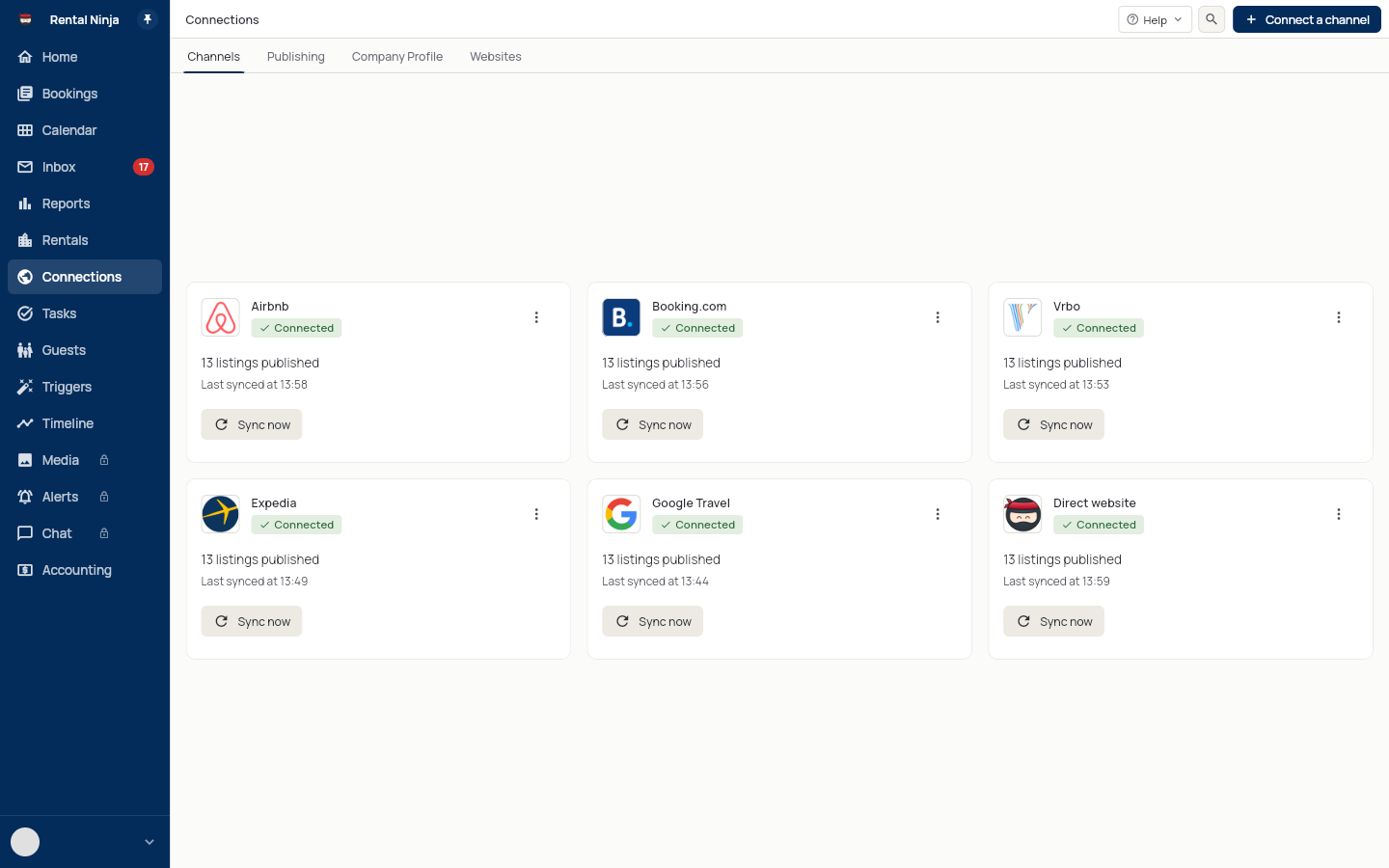
- Open the Booking.com connection.
- Find the listing and expand it using its small arrow.
- Open the room type's rate-management control, labelled "Manage (1) Rate(s)" when it has 1 rate.
- Open an active rate's three-dot menu and choose the option to deactivate that rate plan for the room type.
- Confirm with "Deactivate". Repeat steps 5–6 for the other active rates. Check that the room type is closed for sales in Booking.com before continuing.
- Open the Booking.com extranet. Check that sales are closed for the whole property, then disconnect its connectivity provider before returning to Connections.
- Return to Connections, then Channels. Open the Booking.com connection again.
- Find the property and open its "---" menu.
- Choose "Refresh Synchronization Settings".
Check the rental's distribution status after refreshing. Check Booking.com itself before treating the property as off sale. Do not use a successful refresh as your only check.
Disconnect several rentals
The Booking.com connection also offers "Bulk Actions", then "Deactivate connection" for all active rates. Use this route when you intend to deactivate those rates across the connection, rather than working on one rental.
Before disconnecting each property, check its rate plans and verify that it is closed for sales. Finish the extranet disconnection and synchronization-settings refresh for each property you are removing.
Temporarily close and reopen sales
For a temporary closure, follow steps 1–6, then stop before disconnecting the connectivity provider in the extranet. Also block the pause dates in the rental's Rental Ninja calendar as a safety measure. You need permission to block dates.
These blocks affect the rental's availability, not just Booking.com. Check any other channels where you sell the rental as well. Check both the pause dates and the listing on Booking.com.
To reopen:
- Open Connections, then Channels.
- Open the Booking.com connection.
- Find the listing and expand it using its small arrow.
- Open the room type's rate-management control, labelled "Manage (1) Rate(s)" when it has 1 rate.
- Open a rate plan's three-dot menu and choose "Activate" for the room type.
- Select the next-step button to confirm. Repeat steps 5–6 for each rate plan you want to reopen.
Also remove the pause-date blocks when you are ready to reopen those dates. Check the availability offered on Booking.com after reactivation. For date-based closures, see Block dates.
Existing bookings and status entries
Existing confirmed bookings remain in Rental Ninja, including future stays. Those booked stays still block availability in Rental Ninja. Do not cancel a valid stay merely to disconnect the rental.
Handle booking changes and cancellations on Booking.com. Check Booking.com directly for subsequent changes and messages. Review your guest communications and scheduled work separately before handing over the rental.
Good to know
The embedded controls also work in the macOS app, but are not embedded in the iOS or Android apps. Use a web browser for these steps on those devices.
If you cannot create calendar blocks, ask your team administrator for access.
For retained Booking.com bookings received through the built-in channel manager, these booking-form fields stay read-only:
- Client
- Guest count
- Dates
- Source
- Base rental price
With access to the rental and the relevant permissions, you can still:
- Add fees.
- Edit expected arrival and departure times.
- Edit internal notes.
- Add tags.
Removing an inactive entry from a rental's distribution status is cleanup, not a way to disconnect an active Booking.com connection. The next status sync can recreate the entry if the channel manager still reports the rental.
Why it works this way
An unpublished channel can remain in the rental's status list as an inactive entry. Removing that entry is a separate cleanup action.
Disconnecting Booking.com is separate from deleting the rental or managing your subscription.
Did this solve it?
Thanks. Glad it helped.
Sorry about that. Ninja Agent can answer from this article, or you can write to support.