
Control Center
Read your business overview, choose dates and rentals, and open the reports behind the figures.
- Concept
- Reports Control Center
- Web
- iOS
- Android
Updated November 6, 2026
How it works
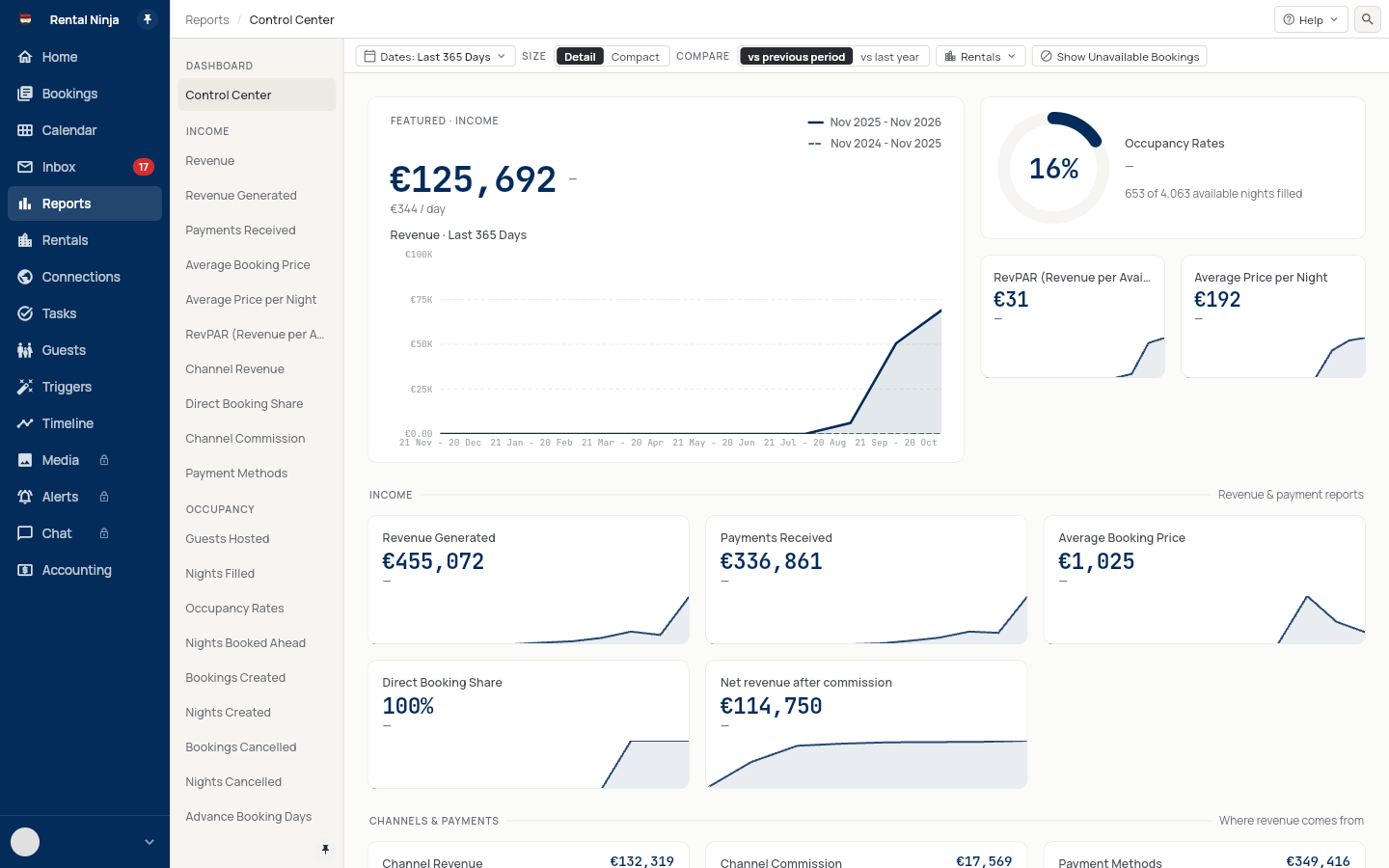
See revenue, occupancy, booking activity and channel breakdowns in the Control Center, under Reports. Choose your dates and rentals, review the overview, then open a card's detailed report to investigate further.
Read the overview
The cards you see depend on your statistics permissions. On a phone, open the filter menu to find the layout and reporting controls.
Under Size, choose between 2 layouts:
- Detail shows a featured revenue chart, an occupancy gauge, smaller charts and grouped activity cards. It also adds these cards:
- Net revenue after commission
- Cancellation rate
- Forward occupancy
- Compact shows grids of metric cards rather than the featured chart and those additional cards.
The default layout is Detail.
Choose dates and rentals
The default date range is the last 365 days. Use the date selector to choose another preset or a custom range.
Open Rentals to choose the properties to include. Where available, city and owner group shortcuts help with larger portfolios.
Check the selected rentals after using a group shortcut: it adds or removes that group's rentals without clearing the rest of your selection.
Show Unavailable Bookings starts off. Turn it on to include blocks in some figures.
Under Compare, choose a comparison for figures that support it:
- vs previous period
- vs last year
To-date presets default to last year; other ranges default to the previous period.
Read the figures
The figures do not all use the same date basis. In particular, revenue attributed to a stay is different from money collected during a period.
The featured revenue chart in Detail spreads eligible booking totals across their nights and includes the share inside your selected range. This lets a stay crossing the range boundary contribute its in-range share rather than its whole value on one arrival date.
Why it works this way
The featured revenue chart in Detail spreads revenue across nights so a stay crossing the selected range contributes its in-range share, rather than its whole value on one arrival date.
The revenue card in Compact instead counts booking totals by check-in date. A stay crossing a month boundary can therefore contribute differently in the 2 layouts.
The additional Detail cards have their own rules:
- The Net revenue after commission total subtracts commission from booking revenue, matching currencies. The commission total includes recorded commission only for bookings with a matching channel source on your team. Both source totals use bookings checking in during the selected range, not the featured chart's nightly split.
- Cancellation rate shows cancellations as a rounded percentage of a combined booking count. That combined count adds the bookings-created count to the bookings-cancelled count. The created count uses creation dates. It includes bookings that are currently booked. It excludes records created after their end date. The cancelled count uses cancellation dates. Neither count uses arrival dates.
- Forward occupancy uses your rental selection but its own dates: today through the date 90 days ahead. It measures bookings already on the calendar, not predicted bookings.
Open a report
Select a card that has a detailed report to open that report. In Compact, the card also needs to have loaded data before it opens the report.
Use the export controls in the individual report. For example, once the revenue report has loaded data, Excel Export requests its Excel file.
The related Reports topic covers the individual report views.
Access and missing cards
To open Control Center, you need at least 1 of the 2 statistics permissions. Money charts require money-related statistics permission. Occupancy and other non-money charts require non-money-related statistics permission. Your rental selection is also limited to rentals you can access.
Good to know
- Your size choice is remembered on your device.
- A saved date preset replaces the initial 365-day range.
- The owner grouping requires permission to see owner names. It also needs at least 1 available rental with an owner name.
- The featured revenue chart excludes bookings without a recorded total. It also excludes bookings with 0 or fewer nights.
- Net revenue after commission is not an owner payout or a calculation of business profit.
- Show Unavailable Bookings does not change the cancellation count. It can add blocks to the bookings-created count used in the cancellation rate.
- Forward occupancy excludes blocks regardless of Show Unavailable Bookings.
- The rental and user counts are summary-only. Net revenue after commission has no detailed report. Neither does Cancellation rate or Forward occupancy.
- If a colleague sees different groups of cards or different rentals, check Roles and permissions.
- Some reports have a rental-selection limit. In Rental Ninja, the affected cards support up to 150 selected rentals. If the dashboard shows a limit warning, reduce the number of selected rentals to see those cards.
Did this solve it?
Thanks. Glad it helped.
Sorry about that. Ninja Agent can answer from this article, or you can write to support.