
Timeline
Review recorded activity and configuration changes, filter the history, and open the related records.
- Concept
- Timeline
- Web
- iOS
- Android
Updated November 6, 2026
How it works
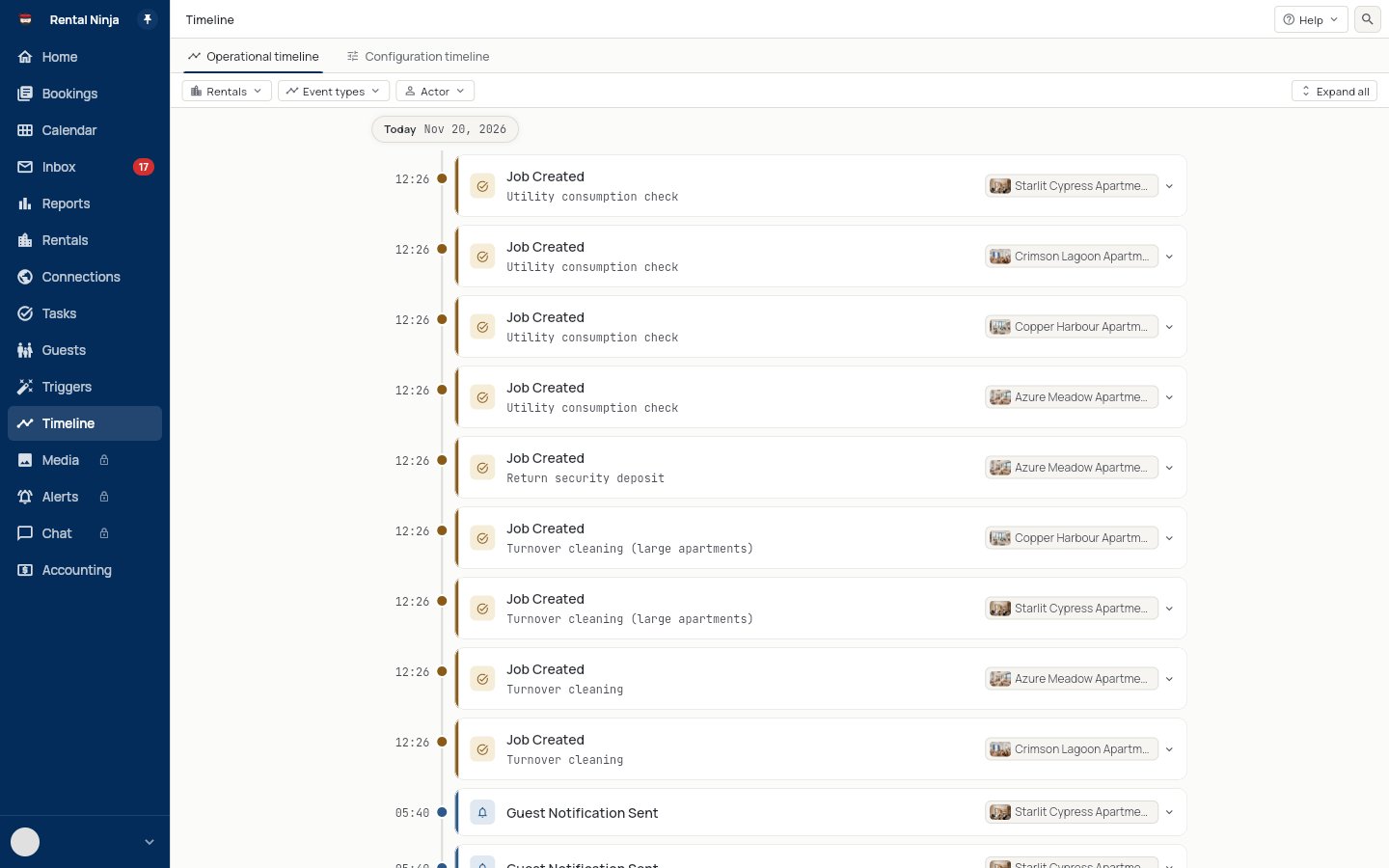
Review recorded activity for your team in Timeline's 2 tabs. Use Operational timeline to follow bookings and day-to-day work. Use Configuration timeline to review changes to your setup.
Both show the newest entries first, grouped by day, with older entries loading as you scroll.
Booking and operational activity
Use Operational timeline to find events such as:
- New bookings and cancellations.
- Changes to check-in or check-out times.
- Alerts, comments and uploaded photos.
- Payments recorded on bookings.
- Tasks created, completed or marked incomplete again.
- Pre-check-in forms completed or reset.
- Accounting activity, such as statements created, downloaded or emailed.
For the task workflow itself, see How tasks work.
Configuration changes
Use Configuration timeline to review recorded rental setup and pricing changes, including seasonal rules, fees and discounts. Fees and discounts sit together with pricing so you can investigate a price change in one area.
Why it works this way
Fees and discounts sit together with pricing so you can investigate a price change in one area.
Entries can show the changed fields and their previous and new values. Open a card when it offers more detail.
Roll up starts enabled and groups related neighbouring configuration entries into summary cards. Open a group to review its members.
Turn Roll up off to display each event separately. This changes the presentation, not the recorded history.
Find a particular event
The tabs have different filters:
| Tab | Filters to use |
|---|---|
| Operational timeline | On wider layouts, use Event types to choose the activity you want to follow. |
| Configuration timeline | Use Config areas for an area of your setup. Use Event types for particular changes. Use the rental filter for specific properties. Use Date range to choose a preset period. |
The configuration date range uses the date the change was recorded, not a booking's stay dates.
Open the related record
Use the buttons offered on an event card to continue working on the related record. For example, task events can offer Open task. Payment events can offer See payment.
The available buttons depend on the event and your access.
What each team member sees
Rental-scoped events follow your rental access. The events you see depend on your permissions and the selected filters.
Some event types also have their own permission checks. Events for payments recorded on bookings require payment visibility. Statement events require accounting access. Selecting a filter does not grant access to otherwise unavailable events.
For access settings, see Roles and permissions.
Good to know
The Tokeet-branded app does not show Timeline in its menu.
The activity list gives examples, not a promise that every action appears in the feed.
Use Actor, when offered, to select a team member in Operational timeline.
A configuration card shows the member's name when it is available. Otherwise, it shows Automatic. This label can also appear when a recorded member's name is no longer available. It does not always mean that no person made the change.
Selecting rentals in Configuration timeline excludes account-wide entries that have no rental, such as team settings changes. Clear the rental selection to include those entries again, subject to your permissions.
Not every event opens a booking: some lead to a task, accounting record or settings screen instead.
If an expected event is missing, first check the active filters and which tab you are viewing.
Only for All-in-One
Channel connection and sync issue events also belong to the configuration history. Daily cleanup removes channel sync issue entries older than 12 months.
If your team subscribed directly through Rental Ninja, its operational and configuration timeline history is also subject to removal after 12 months without a subscription.
Did this solve it?
Thanks. Glad it helped.
Sorry about that. Ninja Agent can answer from this article, or you can write to support.