
Disconnect a rental from Expedia
Check the Expedia connection and clear its inactive entry without deleting your rental or cancelling bookings.
- How-to
- Connections Publishing
- Web
- All-in-One
Updated November 12, 2026
How it works
Only for All-in-One
Check your rental's Expedia status in Connections under Publishing in your browser. After support confirms the disconnection, you can clear the inactive entry from Distribution Info. Remove channel does not disconnect a live Expedia listing.
Before you disconnect
Review your upcoming Expedia stays and agree who will handle them before ending the connection. Tell support whether you want to stop sales or continue under another manager. Ask support to confirm the disconnection for this rental.
Keep this separate from cancelling a booking or deleting the rental. For Expedia booking controls, see Expedia.
What removing the entry does
An inactive Expedia entry can remain in Distribution Info after the connection ends. You can clear that entry with Remove channel.
Why it works this way
Channel status refreshes can mark disconnected entries inactive rather than deleting them. An old Expedia entry can therefore remain visible until you remove it.
This action removes the selected status entry. It does not cancel existing bookings or free their booked dates. It does not delete your rental or cancel your subscription. It sends no request to delete the Expedia listing or its reviews. Removing the entry can also clear its channel connection alert.
Set it up
Your team must have the built-in channel manager enabled. Your team must complete verification. You need access to distribution. You also need access to the rental to remove its entry.
- In a browser, open Connections.
- Select Publishing.
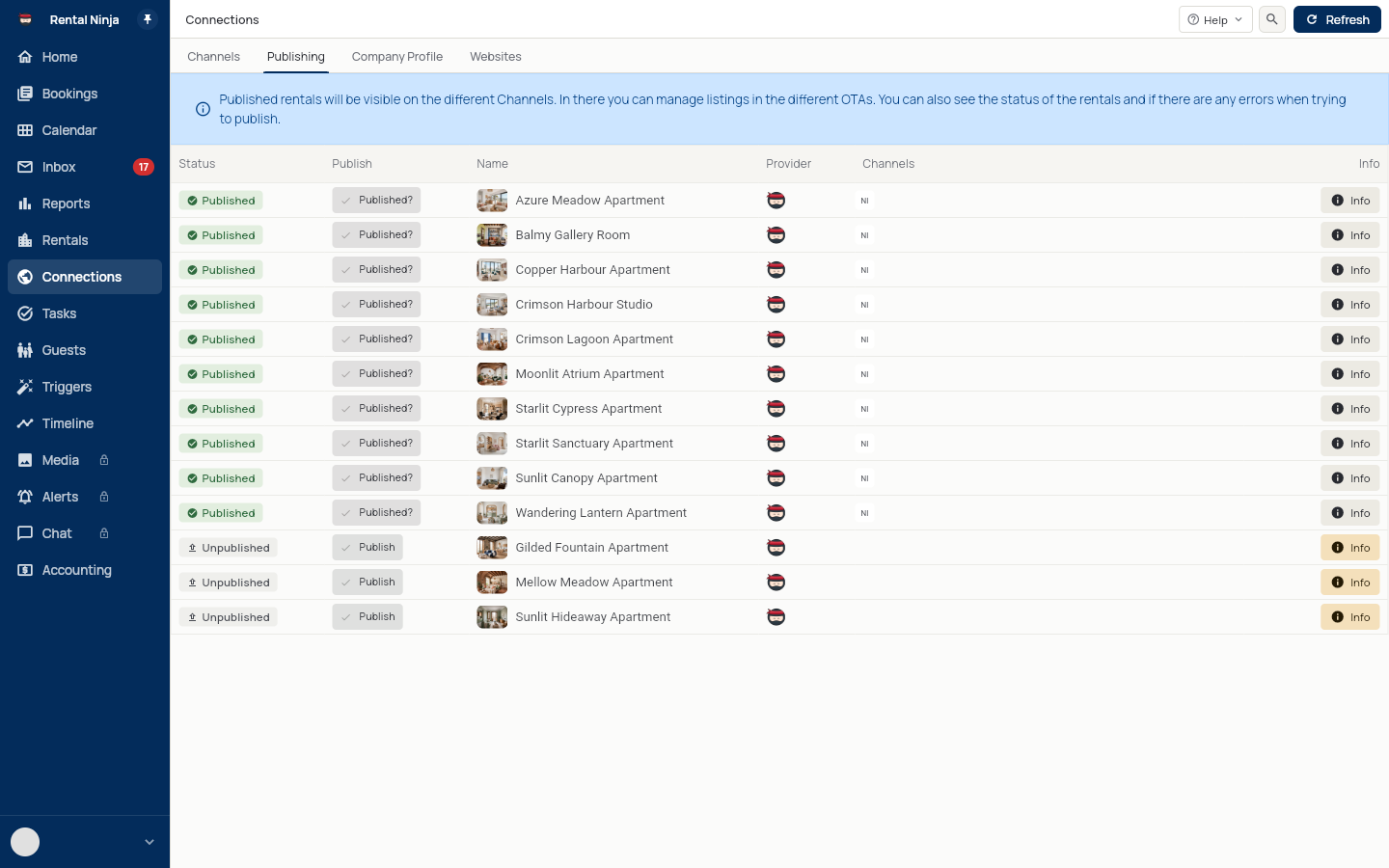
- Select Refresh to request an updated distribution status.
- Select the channel icons for a rental published to the channel manager to open Distribution Info.
- Check Active for Expedia. The value is displayed as
trueorfalse. - Wait for support to confirm the disconnection before removing the entry.
- Select Remove channel for the inactive Expedia entry.
- Select Remove in the dialog to confirm. If the removal succeeds, Rental Ninja removes the entry from the displayed list.
Good to know
A later status refresh can recreate the entry if the channel manager still reports the rental in Expedia. Ask support to check the connection rather than repeatedly removing the entry.
A refresh can leave the displayed status unchanged. An inactive status alone does not confirm disconnection. An active entry cannot be removed here. If no Expedia entry appears, there is nothing to remove here. Ask support to confirm the disconnection rather than relying on the missing entry.
If you can't open Publishing, see roles and permissions.
Do not use the rental-wide unpublishing control as a substitute for disconnecting Expedia alone. See taking a rental off distribution for that separate action.
Note
Removing an inactive entry is not a way to disable guest messaging. Plan any changes to your guest communications separately.
Did this solve it?
Thanks. Glad it helped.
Sorry about that. Ninja Agent can answer from this article, or you can write to support.