
Guests
Find guest contact records, open their linked bookings, and add or edit records managed in Rental Ninja.
- Concept
- Guests Clients
- Web
- iOS
- Android
Updated November 6, 2026
How it works
Find guest contact records and their linked bookings under Guests, in Clients. You can also add a contact record without creating a booking.
Find a guest
The list shows guest names and primary email addresses. Search by all or part of a guest's name.
Without a search, the list is ordered by name, with unnamed records last. Search results put records with more linked bookings first.
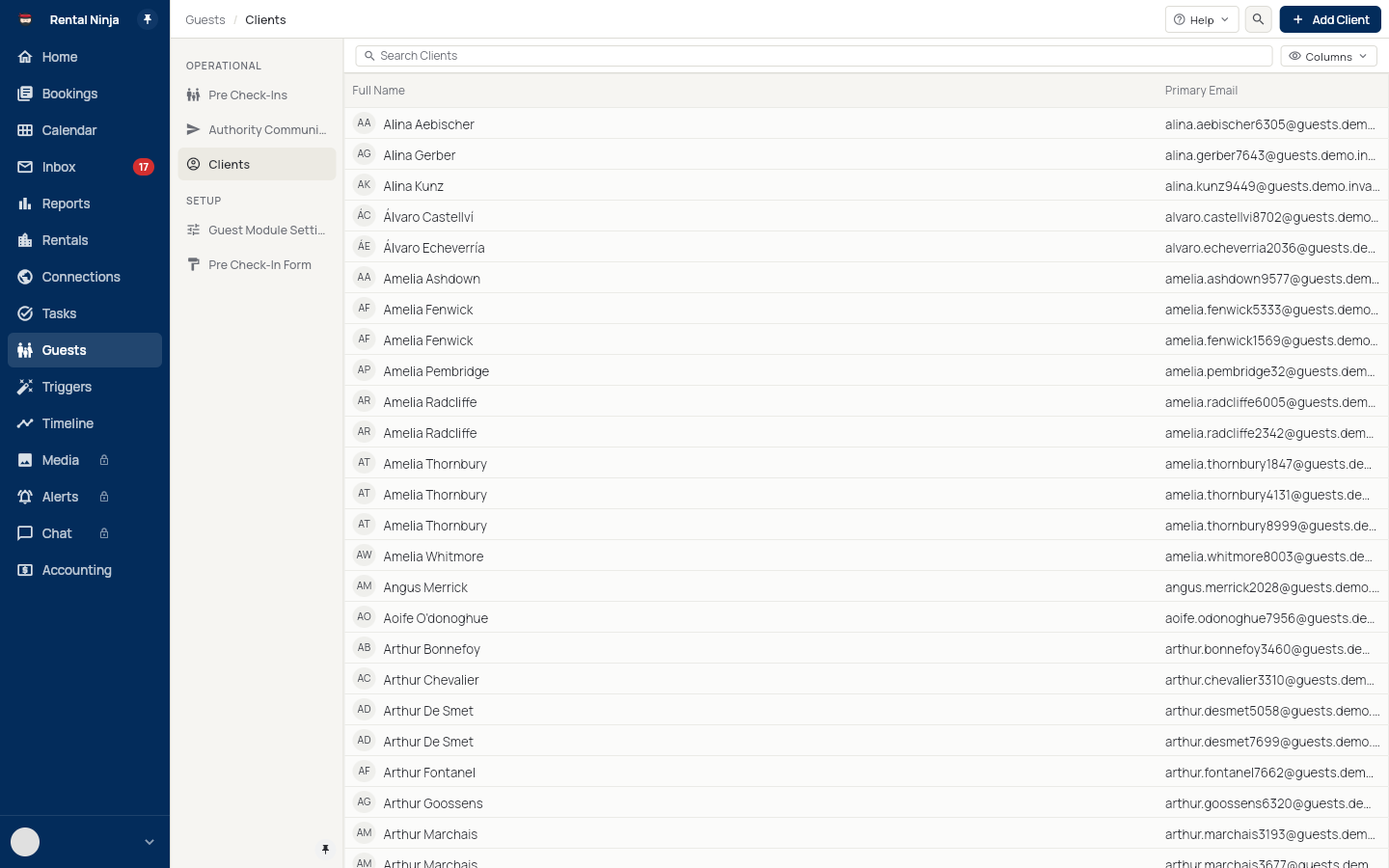
Open a record to view its available contact details:
- Addresses
- Email addresses
- Phone numbers
Where linked booking cards are listed, you can open a booking if you have access to its rental.
Access and editing
You need permission to view clients to open the list. Your team also needs access to guest features, and you need permission to use the guest app. The expanded contact details and linked bookings in Details also require permission to see booking client details. An administrator can review your access under Roles and permissions.
Adding or editing records requires permission to manage clients.
The editable form contains:
- A name
- Last name
- Phone
- Preferred language
- Notes
What saving changes
You edit the guest contact record, not a separate copy for one booking. Check that you have opened the right record before changing it.
For a phone number, use 6 to 15 digits. A leading + is allowed. An invalid replacement number can leave the saved phone field blank. Check the saved number after making a change, as invalid numbers can be discarded.
Warning
Saving a record with an email in the form can remove existing channel relay addresses. This can happen even if you did not change the email. Check the record's contact details before and after saving. Other stored email addresses may still appear in Details.
If Rental Ninja has already tried to report a linked booking, saving changes can queue a report update or retry with the guest registration authority connected to the rental.
Guest records and pre-check-in
Use the contact record to look up the guest and their linked bookings. For the travelers registered on an individual stay and their documents, use Review, complete or export a check-in.
Set it up
To add a record, you need permission to manage clients in Rental Ninja.
- Open Guests.
- Select Clients.
- Search for the guest before adding another record.
- Select Add Client if you need a new record.
- Enter name, using at least 2 characters.
- Fill in the other contact fields you need. If you enter an email address, it must be valid.
- Use Preferred Locale to choose the guest's preferred language, if needed.
- Select Save.
To change an existing record, open it from Clients. Select edit when that control is available. Before saving, review what saving changes. Update the fields and select Save. The blank-field behavior described below also applies when editing.
Good to know
Opening a linked booking still requires access to its rental.
The edit control is offered for records managed in Rental Ninja, not externally managed records. A partner-branded app may not show the Clients tab. If it does, opening and editing records from the list still requires the Rental Ninja app.
The form has no dedicated fields for:
- Company name
- VAT ID
- Billing address
It has no separate business-client mode. Use Notes to record company details for reference, not as a billing profile.
Leaving any of these fields blank does not erase its saved value:
- Phone
- Notes
- Last name
Clearing the last name can also leave it inconsistent with the displayed full name. Replace an incorrect value rather than relying on an empty field to remove it.
Did this solve it?
Thanks. Glad it helped.
Sorry about that. Ninja Agent can answer from this article, or you can write to support.