
Set up an automation
Choose when an automation runs, which bookings it matches and what it does, then activate, deactivate or delete it.
- How-to
- Triggers Setup
- Web
- iOS
- Android
Updated November 6, 2026
How it works
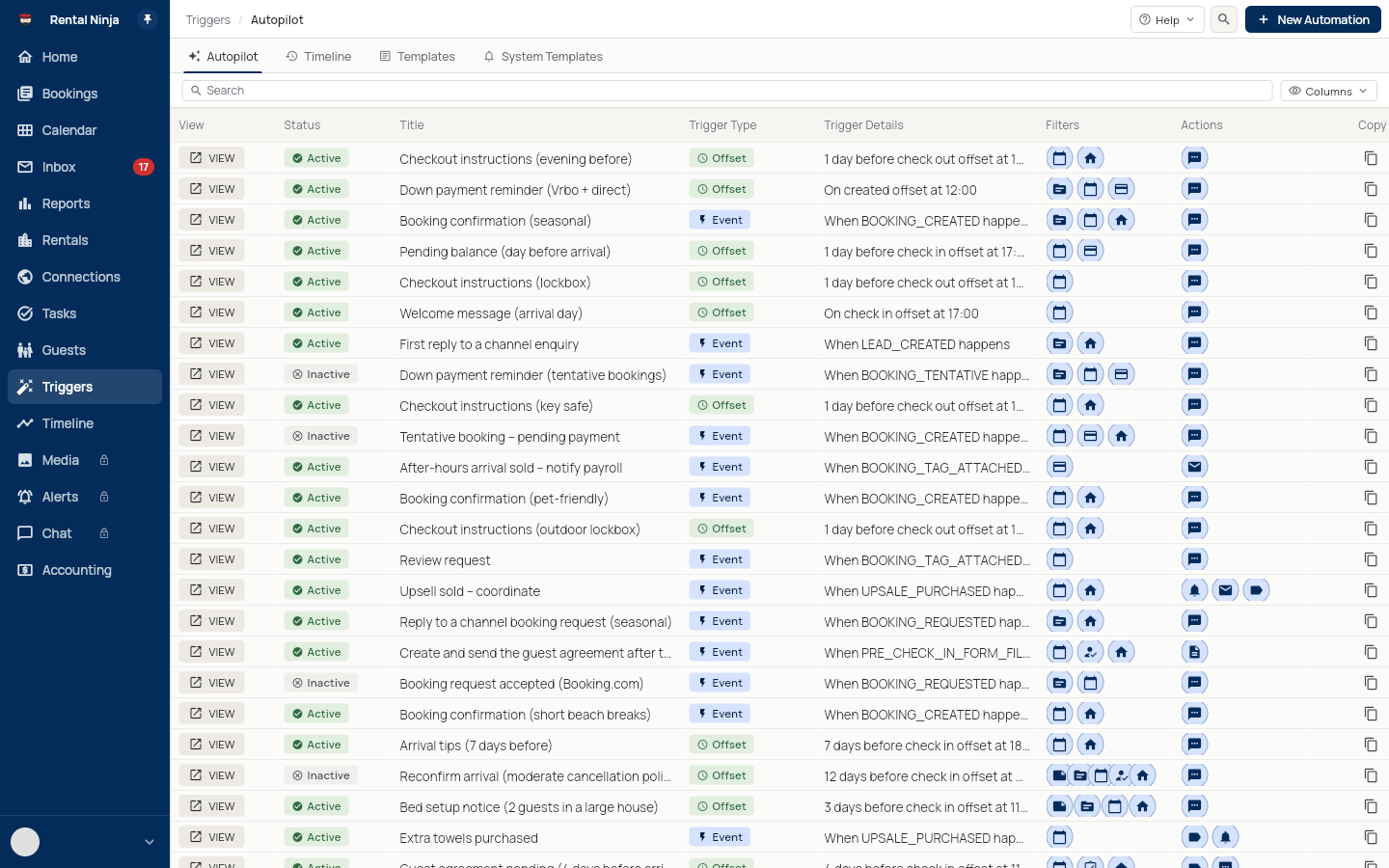
Send messages, notify staff or change bookings automatically from Triggers > Setup. Choose the timing, match the right bookings and add the actions before activating your automation.
The trigger decides when the automation is considered. Booking filters decide which bookings qualify for scheduled and event runs. Actions send messages, notify staff or change bookings.
You need viewing and editing access to Triggers. For missing controls, check Roles and permissions.
Choose the timing
- Event: choose a booking event, such as booking creation. You can configure a delay rather than expecting an exact, immediate send.
- Offset: choose a day relative to check-in, check-out or booking creation, plus an hour, in the rental's local timezone.
- Specific date & time: choose a calendar date and hour in the rental's local timezone. This also adds a stay-status filter to review.
Narrow down the bookings
A new automation starts inactive, with the booking status set to booked. Sources and rentals initially have no restriction.
Review the booking status for your chosen event. You can also filter by rental, source, tags, payment threshold, text in the booking note, pre-check-in completion and rental-contract completion.
Without rental or source restrictions, the automation is not narrowed to a particular property or channel. Check these filters before activating it.
Choose the action
These are examples of actions you can configure:
| Action | What to prepare or check |
|---|---|
| Guest communication | An email-format template for a message to the guest. The template format is separate from the delivery route. |
| Guest SMS | An SMS template. Sending needs a valid guest phone number. |
| Email communication or SMS communication | A matching template and the fixed destination address or number you want to contact. |
| Team notification | A template and a team-member selection. |
| Add tag | The booking tags to attach. |
| Cancel booking | The booking must allow cancellation. Read Cancel a booking before using this action. |
Warning
Sent SMS messages cost extra. Contact our team for pricing details. A cancellation action performs a real cancellation, not a reminder. Check both the action and its booking filters before activating it.
Set it up
- For communication actions, prepare a saved email or SMS message template under Triggers > Templates.
- Open Triggers > Setup. Select New Automation and keep it inactive.
- Use the pencil beside the title to enter a recognisable name, then save it.
- Edit Trigger Type. For an event, choose the event and any delay. For an offset, choose the reference day, relative timing and local hour. Review the second and third attempts; turn them off to avoid repeats. For a specific date, choose the date and local hour. Save the configuration.
- Edit or add your booking filters, saving each configuration. For a specific-date automation, also review the stay-status filter.
- Open the action-add menu and choose the action. Select its template, destination, team recipients or tags as applicable, then save the configuration. Actions with no configuration are added directly.
- Check that the intended action appears in the automation and that the filters match your intended bookings. For an offset, also check how many rentals are in scope and which bookings already match the timing and filters.
- Turn the status switch on. For a specific-date automation, review and confirm the audience prompt.
Note
Add the action before activating an offset automation. With no action attached, it can record the first attempt for a matching booking without doing anything. Adding the action later does not rerun that attempt. The booking can still qualify for an enabled second or third attempt.
Deactivate or delete
Open the automation from Setup and turn its status switch off to deactivate it. It stays in the list with its settings. Deactivation stops new scheduled and event selections.
To remove the automation from the list, select the delete command and confirm.
Good to know
- Offset timing counts days, not hours before arrival. Processing checks that the chosen hour has been reached; it does not promise exact-minute delivery.
- The rental-contract completion filter requires a rental that requires a contract. The rental also needs a contract template.
- A manual test using a selected booking can run the actions without applying the booking filters.
- Team notification email recipients must also have access to the booking's rental.
- An offset or event run already queued can still execute after deactivation.
- On narrow screens, the delete command may be in the overflow menu. Deletion does not undo actions that have already run.
Growth, Pro, Pro Connected and Smart Plan meet the plan requirement. Availability also requires your account to qualify for Rental Ninja's inbox. A Channel Manager or manual rental can qualify a mixed-provider account. Accounts with no rental providers also pass this visibility check.
Guest communication needs a guest linked to the booking.
Only for All-in-One
For bookings on Rental Ninja's Channel Manager, guest communication can use channel messaging on Airbnb, Booking.com, Vrbo and Expedia. Other channels use the guest's primary email when available.
With Smoobu, only Airbnb bookings qualify for channel messaging.
The delivery route is chosen before sending. Email is selected when channel messaging is unavailable. A failed channel send does not automatically switch to email. Email delivery fails without a guest email.
Manage built-in pre-check-in emails and reminders separately: see Send the check-in link and reminders.
Did this solve it?
Thanks. Glad it helped.
Sorry about that. Ninja Agent can answer from this article, or you can write to support.